Category Archives: Uncategorized

WCF Message can only be read once

WCF is a very powerful tool for developers, and I’m sure as you dive in to the development environment you will come across the WCF Message, which is part of System.ServiceModel.Channels Namespace. You should be aware that a message body can only be accessed once and a message can only be written once.  This will in turn can cause a problem if you are creating your own IDispatchMessageInspector, as at some you will need to read the message and once you have read it, you are buggered!

So in order to use the Message you will have to copy the message in to a buffer using the CreateBufferCopy method, here is how you go about it

public void Validate(ref Message message)
{
    MessageBuffer buffer = message.CreateBufferedCopy(int.MaxValue);
   
try
    {
    ValidateInput(buffer.CreateMessage());
    }
   
catch (Exception)
    {
   
throw;
    }
   
message = buffer.CreateMessage();
}
XSD to Objects

I’ve been dealing with REST services within WCF, and one thing that has come to my attention is that the calling service or third party only has access to the REST interface and the XSD’s.

The XSD’s holds all the contract information, therefore if you need to generate a concreteclass you are going to have to translate the XSD to an object. 

I’ve have come across the XSD Object Generator frm Microsoft which appears to do the job.

XSDObjectGen.msi (667.00 kb)

MVVM Material

After attending a talk on Silverlight 4, MVVM and TDD with Jesse Liberty, I thought it would be an idea to find out more information on MVVM, James Green provided me with a number of worth while links by Jason Dollinger from Lab49.  The main blog post is here http://blog.lab49.com/archives/2650 but the actual video is here http://www.lab49.com/files/videos/Jason%20Dolinger%20MVVM.wmv big download (about 1.5 hours).

The source code for the project he is doing is here http://blog.lab49.com/archives/2689

Another good one is by Karl Shifflet (he’s a VS IDE developer) http://channel9.msdn.com/shows/Continuum/MVVM/

This guy is worth following as well http://sachabarber.net/?cat=17

Want to know not only MVVM but all about Silverlight 4 too, check out Scott Gu’s post for Silverlight 4 Training Kit

Passing Validation exceptions via WCF REST

When using WCF and Rest one thing you’re going to have to consider is the validation of the object, the way to do this is using the Validation Application Block included in the Microsoft Enterprise Library to validate the data transfer objects. This way you can decorate the objects with attributes to validated the objects

Here is an example

public static void Validate<T>(T obj)
{
     ValidationResults results = Validation.Validate(obj);

     if (!results.IsValid)
         
string[] errors = results
          .Select(r => r.Message)
         
.ToArray();

     WebOperationContext.Current.OutgoingResponse.StatusCode = HttpStatusCode.BadRequest;
     WebOperationContext.Current.OutgoingResponse.StatusDescription = String.Concat(errors);
}

thanks to Enrico Campidoglio for helping out on this

MVC 2 makes it easier to copy models

With MVC 2 now released, I have found a nice little feature for updating models.

The normal practice is to use, a mapping technique like this

public void Save(EmployeeViewModel employeeViewModel)
{
    var employee = (from emp in dataContext.Employees
                   where emp.EmployeeID == employeeViewModel.EmployeeID
                   select emp).SingleOrDefault();

    if (employee != null)
    {
        employee.Address = employeeViewModel.Address;
        employee.Salary = employeeViewModel.Salary;
        employee.Title = employeeViewModel.Title;
    }
    dataContext.SubmitChanges();
}

But now we can use the ModelCopier, which uses reflection to transpose the model

public void Save(EmployeeViewModel employeeViewModel)
{
    var employee = (from emp in dataContext.Employees
                    where emp.EmployeeID == employeeViewModel.EmployeeID
                    select emp).SingleOrDefault();

    if (employee != null)
    {
        ModelCopier.CopyModel(employeeViewModel, employee);
    }
    dataContext.SubmitChanges();
}

So, you’ve tried it out, but you can’t find ModelCopier?  That is because is part of MVC 2 futures, what a tease 😉

I have however created this extended version of an Object Copier, which also copies objects inside of the object.

ObjectCopier.zip (50.83 kb)

ASP.NET MVC 2 Released

MVC 2 has been released, I’ve been developing an application using the RC and I am very happy with the new features, there are so many, Areas, Auto-Scaffold UI Helpers with Template Customization which I just love.

I’ve just had to un-install my MVC 2 RC and install the official release of MVC 2 and it worked without any problems.


  • New Strongly Typed HTML Helpers
  • Enhanced Model Validation support across both server and client
  • Auto-Scaffold UI Helpers with Template Customization
  • Support for splitting up large applications into “Areas”
  • Asynchronous Controllers support that enables long running tasks in parallel
  • Support for rendering sub-sections of a page/site using Html.RenderAction
  • Lots of new helper functions, utilities, and API enhancements
  • Improved Visual Studio tooling support


To download click here

For more details check out Scott Gu’s blog on MVC 2 Released

enums with real world names

Enums are a wonderful addition to .Net, but won’t it be nice to have a real world description that you can display to the user interface? Well you can, and here is how define an attribute (or use existing DisplayNameAttribute) and annotate your enum with names as additional meta-data:

public enum Unit
{
    [DisplayName(“Hz”)] Hertz,
    [DisplayName(“%V”)] Volt
}

Conditional Breakpoints

I know that conditional breakpoints have been around for some time, I just keep forgetting how to set it, so I though it should be time write how to set a conditional breakpoint on my blog.

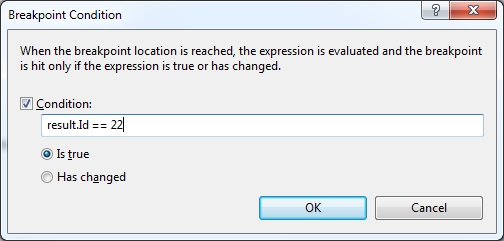
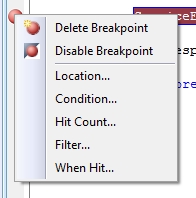
When you only want to break under certain conditions, you can right-click on a breakpoint red circle (or go to the Breakpoints Window and bring up the context menu on a given breakpoint) and select Condition to bring up the dialog box for conditional breakpoints. 

You’re given two options: break only when the specified expression is true or break only when the specified value has changed.  For this example, since I’m in a for loop, i’ll break when the value of result.Id == 22.

You’ll notice that the breakpoint circle now has a red plus on it to indicate it is conditional.