WooCommerce Shortcodes

The first four shortcodes are used for special WooCommerce pages and are sometimes automatically inserted into the pages by WooCommerce during installation. They should not otherwise be used. All others can be used throughout and can be used more than once.


Shortcodes for WooCommerce sites only

Shortcode

Parameter

Meaning

woocommerce_cart

none

Shows the content of the cart page.

woocommerce_checkout

none

Shows the content of the checkout page.

woocommerce_order_tracking

none

Shows the user a form with which he can enquire about the status of his orders.

woocommerce_my_account

current_user, order_count

Shows the content of the user account page.


Non-specific WooCommerce shortcodes

Shortcode

Parameter

Meaning

recent_products

per_page, columns, orderby, order

Shows new products.

featured_products

per_page, columns, orderby, order

Shows featured products.

product

id or sku

Shows a single product.

products

ids or skus, columns, orderby, order

Shows several predetermined products.

add_to_cart

id or sku, style

Shows the price and the “add to cart” button of a single product.

add_to_cart_url

id or sku

Displays the URL of the “add to cart” button of a particular product in text form.

product_page

id or sku

Shows the detail page of a product.

product_category

per_page, columns, orderby, order, category

Shows the products in a category.

product_categories

number, orderby, order, columns, hide_empty, parent, ids

Shows existing product categories.

sale_products

per_page, columns, orderby, order

Shows products on offer.

best_selling_products

per_page, columns

Shows best-selling products.

top_rated_products

per_page, columns, orderby, order

Shows top-rated products.

product_attribute

per_page, columns, orderby, order, attribute, filter

Shows products with a particular attribute.

related_products

per_page, columns, orderby

Shows related products.

Note: The parameters orderby and order are WordPress-specific and are described in more detail in the Codex.


[woocommerce_cart]

Shows the content of the cart page and everything that comes with it; list of products in the basket, voucher entry, shopping cart total, Proceed to checkout button, product recommendation etc. This shortcode will be automatically inserted into the cart page when installing WooCommerce.

Parameter

  • none

Example

Crayon Syntax Highlighter v2.7.1

[woocommerce_cart]

1

[woocommerce_cart]

[Format Time: 0.0006 seconds]


[woocommerce_checkout]

Shows the content of the checkout page and everything that comes with it; invoice details, order overview Continue button etc. This shortcode will be automatically inserted into the checkout page when installing WooCommerce.

Parameter

  • none

Example

Crayon Syntax Highlighter v2.7.1

[woocommerce_checkout]

1

[woocommerce_checkout]

[Format Time: 0.0004 seconds]


[woocommerce_order_tracking]

Shows the user a form with which he can enquire about the status of his orders by stating the order number and email address. After entering the data, the customer is redirected to a page that displays the status and a summary of the order.

Parameter

  • none

Example

Crayon Syntax Highlighter v2.7.1

[woocommerce_order_tracking]

1

[woocommerce_order_tracking]

[Format Time: 0.0004 seconds]


[woocommerce_my_account]

Shows the content of the My Account page and everything that comes with it; overview of past orders, billing address and delivery address etc. The customer can also edit his data here. This shortcode will be automatically inserted into the My Account page when installing WooCommerce.

Parameter

  • current_user
  • default: ”
  • The customer whose My Account page is to be displayed.
  • This is determined automatically using the function get_user_by get_user_by( ‘id’, get_current_user_id() )
  • order_count
  • default: 15
  • Number of orders to be displayed, -1 for the display of all orders.

Example

Crayon Syntax Highlighter v2.7.1

[woocommerce_my_account order_count=”12″]

1

[woocommerce_my_account order_count=“12”]

[Format Time: 0.0005 seconds]


[recent_products]

Shows recently added products, sorted according to various criteria. For presentation purposes you can specify the number of products to be displayed per page and the number of columns.

Parameter

  • per_page
  • default: 12
  • Number of products displayed per page.
  • columns
  • default: 4
  • Number of columns.
  • orderby
  • default: date
  • Sort key.
  • order
  • default: desc
  • Sort order.

Example

Crayon Syntax Highlighter v2.7.1

[recent_products per_page=”12″ columns=”4″]

1

[recent_products per_page=“12” columns=“4”]

[Format Time: 0.0006 seconds]


[featured_products]

Shows featured products, sorted according to various criteria. For presentation purposes you can specify the number of products to be displayed per page and the number of columns. Comparable to recent_products.

Parameter

  • per_page
  • default: 12
  • Number of products displayed per page.
  • columns
  • default: 4
  • Number of columns.
  • orderby
  • default: date
  • Sort key.
  • order
  • default: desc
  • Sort order.

Example

Crayon Syntax Highlighter v2.7.1

[featured_products per_page=”12″ columns=”4″]

1

[featured_products per_page=“12” columns=“4”]

[product]

Shows a single product that is specified by the ID or the item number (SKU). Make sure the catalog visibility is not set to hidden or the product will not be shown. The ID of a product can be determined in the dashboard on the product page. It will be displayed when you hover the mouse over the product in the name column. You can find the item number in the Art.-Nr. column.

Parameter

  • id
  • default: ”
  • Product ID
  • sku
  • default: ”
  • Product item number

Examples

Crayon Syntax Highlighter v2.7.1

[product id=”99″]

1

[product id=“99”]

Crayon Syntax Highlighter v2.7.1

[product sku=”ART103″]

1

[product sku=“ART103”]


[products]

Displays several products, which are specified by their IDs or by their item number (SKU). Make sure the catalog visibility is not set to hidden or the product will not be shown. Comparable to product.

Parameter

  • id
  • default: ”
  • Product ID
  • sku
  • default: ”
  • Product item number
  • columns
  • default: 4
  • Number of columns.
  • orderby
  • default: title
  • Sort key.
  • order
  • default: asc
  • Sort order.

Examples

Crayon Syntax Highlighter v2.7.1

[products ids=”1, 2, 3, 4, 5″]

1

[products ids=“1, 2, 3, 4, 5”]

Crayon Syntax Highlighter v2.7.1

[products skus=”ART12, ART22, ART50″ orderby=”date” order=”desc”]

1

[products skus=“ART12, ART22, ART50” orderby=“date” order=“desc”]


[add_to_cart]

Shows the price and the Add to Cart button of a product, which is specified by the ID or the item number (SKU). The style parameter can be used for formatting.

Parameter

  • id
  • default: ”
  • Product ID
  • sku
  • default: ”
  • Product item number
  • style
  • default: border:4px solid #ccc; padding: 12px;
  • Formatting

Example

Crayon Syntax Highlighter v2.7.1

[add_to_cart id=”99″]

1

[add_to_cart id=“99”]


[add_to_cart_url]

Displays the URL of the add to cart button of a particular product in text form. The product is specified by the ID or the item number (SKU).

Parameter

  • id
  • default: ”
  • Product ID
  • sku
  • default: ”
  • Product item number

Example

Crayon Syntax Highlighter v2.7.1

[add_to_cart_url id=”99″]

1

[add_to_cart_url id=“99”]


[product_page]

Shows the detail page of a product which is specified by the ID or the item number.

Parameter

  • id
  • default: ”
  • Product ID
  • sku
  • default: ”
  • Product item number

Examples

Crayon Syntax Highlighter v2.7.1

[product_page id=”99″]

1

[product_page id=“99”]

Crayon Syntax Highlighter v2.7.1

[product_page sku=”ART103″]

1

[product_page sku=“ART103”]


[product_category]

Shows the products in a category which are specified by their permalink (slug). You can find the permalink in the dashboard under Products → Categories in the column Permalink.

Parameter

  • per_page
  • default: 12
  • Number of products displayed per page.
  • columns
  • default: 4
  • Number of columns.
  • orderby
  • default: title
  • Sort key.
  • order
  • default: desc
  • Sort order.
  • category
  • default: ”
  • Category slug.

Example

Crayon Syntax Highlighter v2.7.1

[product_category category=”musik”]

1

[product_category category=“musik”]


[product_categories]

Displays the product categories with the category image and if desired the number of products contained in each of the categories.

Parameter

  • number
  • default: null
  • Number of categories to be displayed. If null, then all are displayed.
  • columns
  • default: 4
  • Number of columns.
  • orderby
  • default: name
  • Sort key.
  • order
  • default: asc
  • Sort order.
  • hide_empty
  • default: 1
  • Specifies whether or not to display empty categories. 1 for yes, 0 for no.
  • parent
  • default: ”
  • If set to 0, only top level categories will appear.
  • ids
  • default: ”
  • The Ids of categories to be displayed. If not specified, all categories will be included.

Example

Crayon Syntax Highlighter v2.7.1

[product_categories number=”12″ parent=”0″]

1

[product_categories number=“12” parent=“0”]


[sale_products]

Shows the products that are currently on offer, sorted according to various criteria. For presentation purposes you can specify the number of products to be displayed per page and the number of columns.

Parameter

  • per_page
  • default: 12
  • Number of products displayed per page.
  • columns
  • default: 4
  • Number of columns.
  • orderby
  • default: title
  • Sort key.
  • order
  • default: asc
  • Sort order.

Example

Crayon Syntax Highlighter v2.7.1

[sale_products per_page=”12″]

1

[sale_products per_page=“12”]


[best_selling_products]

Shows best-selling products. The number of products displayed per page and the number of columns can be specified here.

Parameter

  • per_page
  • default: 12
  • Number of products displayed per page.
  • columns
  • default: 4
  • Number of columns.

Example

Crayon Syntax Highlighter v2.7.1

[best_selling_products per_page=”12″]

1

[best_selling_products per_page=“12”]


[top_rated_products]

Shows top-rated products. Sorting according to various criteria possible.

Parameter

  • per_page
  • default: 12
  • Number of products displayed per page.
  • columns
  • default: 4
  • Number of columns.
  • orderby
  • default: title
  • Sort key.
  • order
  • default: asc
  • Sort order.

Example

Crayon Syntax Highlighter v2.7.1

[top_rated_products per_page=”12″]

1

[top_rated_products per_page=“12”]


[product_attribute]

Shows products with a particular property and the specified values for that property. Sorting according to various criteria possible.

Parameter

  • per_page
  • default: 12
  • Number of products displayed per page.
  • columns
  • default: 4
  • Number of columns.
  • orderby
  • default: title
  • Sort key.
  • order
  • default: asc
  • Sort order.
  • attribute
  • default: ”
  • The property that the products must have in order to be displayed.
  • They will only appear if the parameter is used.
  • filter
  • default: ”
  • The value of the property the products must possess in order to be displayed.
  • They will only appear if the parameter is used.

Example

Crayon Syntax Highlighter v2.7.1

[product_attribute attribute=”farbe” filter=”schwarz”]

1

[product_attribute attribute=“farbe” filter=“schwarz”]


[related_products]

Shows similar products. Similar products are determined on the basis of categories and tags. This shortcode must be used within a product detail page.

Parameter

  • per_page
  • default: 2
  • Number of products displayed per page.
  • columns
  • default: 2
  • Number of columns.
  • orderby
  • default: rand
  • Sort key.

Example

Crayon Syntax Highlighter v2.7.1

[related_products per_page=”12″ orderby=”title”]

1

[related_products per_page=“12” orderby=“title”]

Caution: The per_page parameter specifies how many items to display on a page. The pagination function is not automatically generated. The per_page and columns parameters determine how many products and columns will be displayed. Whether this actually works and for which parameter values, is highly dependent on the layout of your theme. This requires some trial and error and reworking of the CSS.

The original documentation can be found on these WooThemes pages. Some shortcodes have been removed since WooCommerce 2.1.x. These shortcodes have not been described here. If required, you can also find them in the WooThemes documentation.
How to move a Joomla website

So I’ve been volunteering for an NGO called Otra Cosa Network in Peru and as part of my volunteering I have been teaching young children to swim, but of course I get roped into helping with their website.  A busman’s holiday I know..!

So their existing website is using Joomla so the first step for me is to back a backup copy of the existing Joomla website.

I found JoomlaPack, which is now called Keeba Backup, which can be found here:

https://www.akeebabackup.com/download.html

They recommend you follow the videos on their website

https://www.akeebabackup.com/videos/1212-akeeba-backup-core/1615-abtc01-installation-first-backup.html

Now that you are able to backup the website, I needed to restore the live website to backup site, to do this you need to download Keeba KickStart and unzip the files, taking just the kickstart.php file which you’ll need to add to the root folder of the new website, also copy across the backup file you wish to restore.

A backup of your web site is only useful if you can restore it – perhaps you need to transfer your web host or even move the site from a development server to a live server.

Like always I have attached the version I worked with at the bottom of this post.

Here is a step by step process for you to restore the backup you have just taken:

Or you can watch the video here

  1. To begin with, take a brand new backup of your web site.
  2. Once the backup is complete, go to Manage Backups and download the backup file to your computer.
  3. Now we’ve downloaded the backup file, we need an additional program called Kickstart which you can find at the akeebabackup.com web site.
  4. Go to downloads. Scroll down to Akeeba Kickstart and click Download to download the file to your computer.
  5. The Kickstart program is NOT a Joomla extension. Here we can see that the Kickstart program is a zip file and we need to extract that.
  6. On most operating systems you can do that simply by double clicking on the file name.
  7. We can see we now have a new folder with all the kickstart files in it.
  8. The only one that you actually need is the kickstart.php file; all the rest are language translations.
  9. We now need to transfer the kickstart.php and our backup to our brand new web host, and to do that we will use a FTP program.
  10. I am going to use filezilla but you can use any ftp program that you like.
  11. To begin with, connect to your NEW server.
  12. Once connected, make sure you are in the public html or the web root of your server.
  13. Now you need to transfer the backup file from our local computer to our live server. I am just going to pick that up and drag it across.
  14. You can see the upload is taking place. We now have the backup file on the new server.
  15. We now need to take that kickstart.php file and do exactly the same thing. Select it and drag it across.
  16. That’s it with the filezilla for now so let’s go back to our web browser and go to our brand new web site.
  17. As you can see I have a holding page in place to show that the web site is coming soon.
  18. So just go to the special url for kickstart.php. The kickstart program is now running.
  19. Kickstart is NOT an installation program, it is a special archive extraction tool.
  20. We can click here to remove this message and we can see here that it has detected the archive file.
  21. We have several methods of extracting the files. On most good web hosts, we can use the hybrid method.
  22. Finally click START to begin the extract process.
  23. Kickstart has now extracted the backup file and provides a link to the installer that was built in to that backup.
  24. The installer is a very simple process. We begin with the required settings. As you can see, they are all set to yes. If any are set to No, you won’t be able to proceed and you need to speak to your web hosts to rectify the errors.
  25. We can now click Next.
  26. I know need to enter the database connection details that I have got from my web host.
  27. Enter the server hostname (which is usually localhost, but that may depend on your hosting) and your DATABASE username and password. And finally the database name that you want to install your web site on. Again this is something that your host will have provided to you or you will have set up yourself within your hosts control panel.
  28. And click next.
  29. The restoration process of the database has now been processed and we can click to continue.
  30. We have now have the opportunity if we wish to change the site name and the email address. In most cases when you are restoring a site you won’t need to do this.
  31. If we scroll down there is also the opportunity to change the password and email address of the Super Administrator.
  32. Finally, click Next again.
  33. The sites configuration has all been setup.
  34. Now what we need to do is close this window and when we are now back at the Akeeba Kickstart program and click on Cleanup.
  35. This will remove the kickstart.php file and that big backup archive.
  36. Now that we’re done we can visit our website and here we can see that the web site has now been transferred from our old hosting account to our new one.


com_akeeba-4.5.5-core.zip (2.48 mb)

kickstart-core-4.1.4.zip (267.22 kb)

The way to handle unauthorised requests to Ajax actions in ASP.NET MVC

Problem

I have created a view that posts to an action via Ajax with the expectation that the action will return the requested data or an empty string.  Even better, I would like it to be configurable to return whatever value I see fit.

The problem arises when I decorate the called action with the [Authorize] attribute.  If the request is not authorized and I have a loginUrl configured in my web.config, my ajax request will return the html output of my loginUrl view.  That is undesirable.

Solution

I can extend the existing Authorize attribute by inheriting from the AuthorizeAttribute class.  Here is the code that extends the Authorize attribute:

public class AjaxAuthorizeOverrideAttribute : AuthorizeAttribute
    {
        public string View { get; set; }

        protected override void HandleUnauthorizedRequest(AuthorizationContext filterContext)
        {
            if (!filterContext.HttpContext.Request.IsAjaxRequest())
            {
                base.HandleUnauthorizedRequest(filterContext);
                return;
            }

            filterContext.Result = new ViewResult { ViewName = View };
            filterContext.Result.ExecuteResult(filterContext.Controller.ControllerContext);
        }
    }

Here is the decorator for the ajax action in the controller class:

[AjaxAuthorizeOverride(View="AjaxAuthorizeError")]

public ActionResult AjaxRequest()
{
     return View();
}

Note: there is no default view page being rendered.


Original article can be found here

Creating and Publishing to NuGet

Now that we have a Nuget Server installed and up and running we will want to deploy our packages.

First you’ll need to install the nuget.exe command line bootstrapper

Installing NuGet.exe

  • Download NuGet.exe
  • Place NuGet in a well known location such as c:\utils on your machine
  • Make sure that NuGet.exe is in your path

Then you can take two simple steps to generate your package

nuget pack MyProject.csproj -IncludeReferencedProjects -Prop Configuration=Release

then push your pack to the nuget server, with your APIKey you setup in your web.config of the nuget.server

nuget push {package file} -s http://yourNugetServer/ {apikey}

That is it, you now have your package available in your own private nuget server.

For more details on Creating and Publishing a Package

Setting up a NuGet Server

Whether it’s your company restricts which third-party libraries their developers may use or just you need your own private repository to store all your protected work.  A NuGet Server is what you are after.

Before I start I need to mention a few things about NuGet Gallery, which I spent a good two days trying to get working correctly on Azure and failed and in the end ended up generating a very basic Nuget Server to host all the libraries.

This all can be done with just four simple steps

  1. Create a new DotNet Core ASP.net Web MVC Application
  2. Install nuget.server (https://www.nuget.org/packages/NuGet.Server.Core/)
  3. Deploy your application to your website

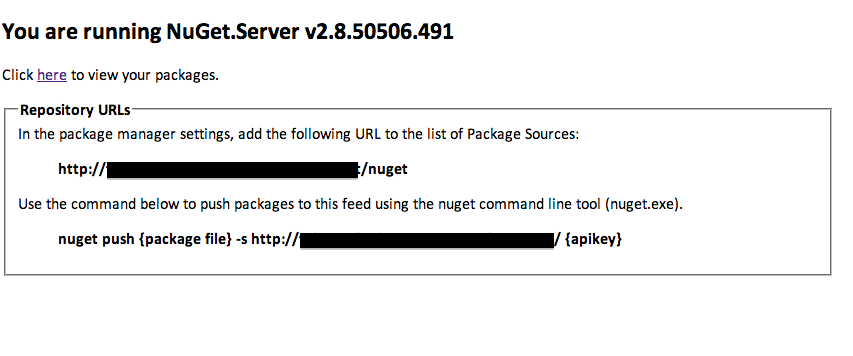
That is it, if you fire up your server you should see a screen like this:

That is it you now have a hosted Nuget Server, next we’ll look at deploying your solution to the Nuget Server

Full details can be found here: Host Your Own NuGet Server or How To Create Local NuGet Server

User Stories

Here are some helpful pointers for writing User Stories

A Story template
  1. “As a <User or role>
  2. I want <Business Functionality>
  3. So that <Business Justification>”
Example:
  1. As a Account Holder,
  2. I want to be able to withdraw funds from my checking account,
  3. So that I can buy some bling.
Stories are not
  • “mini” Use Cases
  • a complete specification
  • a contract
  • intended to be interpreted without a Product Owner
User Stories guidelines
  • Testable – Tangible acceptance tests can be written against any delivered software
  • The scope of the User Story is manage-able enough for the team to provide an Estimate
  • Independent and do not rely on other Stories
  • Sized appropriately.. Have a level of effort which the team can comfortably achieve in the duration of a single iteration

GitHub for web Designers

Unless you’re a one person web shop with no team to collaborate with, you’ve experienced the frustration that goes along with file sharing. No matter how hard you try, when multiple people are working on a single project without a version control system in place things get chaotic.

If you work with developers on the build-out and implementation of websites, the merge between front-end templates and back-end functionality can be a scary black hole.

Issues like overwrites, lost files, and the all-too-common “working off a previous version” phenomenon crop up constantly. And once back-end functionality has been put into your templates, you become terrified to touch them for fear of breaking something a developer spent a great deal of time getting to work.

In addition, even if you have a common repository that everyone is pulling from odds are at least one member of your team forgot to grab the latest files and is about to blow things up with their latest additions.

Fear not GitHub is here to save the day, I’ll give you a quick review of GitHub, an excellent version control system.

Version Control – A Quick and Dirty Explanation

Version Control (also known as Revision Control or Source Control Management) is a great way to solve the file sharing problem.

The basic concept is this: there is one main repository for all of the project files. Team members check files out, make changes, and then check them back in (or commit them). The Version Control System (VCS) automatically notes who changed the files, when they were changed, and what about them was new or different.

It also asks you to write a little note about the change so everyone on the project knows at a glance what you did and why. Each file will then have a revision history so you can easily go back to a previous version of any file if something goes horribly wrong.

A good  Version Control System also allows you to merge changes to the same file. If you and another person work locally on the same file at the same time, when you push these files back into the main repository the system will merge both sets of changes to create a new and fully up-to-date file. If any conflicts arise during the merge it will highlight them for you.

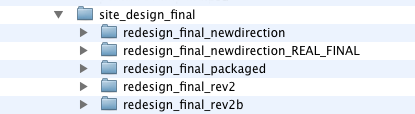
You’re probably using a very crude  Version Control System right now to keep your files straight. If you’re a designer, it looks something like this:

This works well enough for PSDs and other large binary files, which don’t really lend themselves to  Version Control System. But there’s a much better way to do it when you are managing the source code for a website.

Benefits to using a Version Control System include:

  • Files cannot be overwritten
  • There is a common repository that holds all the latest files
  • People can work on the same files simultaneously without conflict
  • Allows you to revert back to an older version of the file/project if needed
  • Making your developers very happy

Even if you don’t work with a team, version control can be a lifesaver. Backing up files is one of the easiest things you can do to save yourself from losing work or having to start over.

The idea of a  Version Control System seems daunting at first, especially since most of the documentation is written by and for developers. But once you make the move to incorporate it into your workflow, you’ll find it’s not nearly as hard as it looks.

Meet GitHub

OK, so now you can see why a Version Control System is a must-have for your web team. If you do a little Googling you’ll see that there are quite a few options out there including SVN, Mercurial, CVS, Bazaar and GitHub. Any one of them could be a good solution for your needs, and I encourage you to do some research before selecting a  Version Control System. In this article I’m going to focus on GitHub, the one I use daily. It’s a “rising star” that has gained popularity thanks to a strong Linux fanbase, GitHub and the Rails community.

GitHub is a free open-source Version Control System originally created by Linus Torvalds for Linux kernal development. Linus is a very smart guy; when he sets out to solve a problem, he doesn’t mess around. One of Git’s big differentiators is that unlike SVN and CVS it is a distributed version control system. This means that every user has a complete copy of the repository data stored locally on their machine. What’s so great about that? A few things:

  • Everything is local, so you can work offline
  • There is no single point of failure. It doesn’t rely on one central server that could crash and burn, taking the only repository for your project with it.
  • Because it doesn’t have to communicate with a central server constantly, processes run much faster

Git has a slightly tougher learning curve than SVN, but the trade-off is worth it. Just think how impressed your developer friends will be when you tell them you’re using the new hotness that is Git! In all seriousness, I don’t think the learning curve is all that steep. 

Installing Git isn’t fun and games. But there are plenty of resources online to get you through it. It will run on a PC, Mac or Linux box, although installation for Linux and OSX is considerable easier than for Windows.

You can download the latest version of Git here. Once you have the files, try this quick guide to get you started with the installation process. For Windows users, this step-by-step visual guide should be helpful. Mac users, try this guide found on GitHub

Original Article

Google authentication get email from ASP.NET Identity

So how do you obtain the external user email (the one authentication by google), first name and name in an ASP.NET website using ASP.NET Identity?

var email = externalIdentity.FindFirstValue(ClaimTypes.Email);

and here is getting the type

public static string FindFirstValue(this ClaimsIdentity identity, string claimType) 
    {
        Claim claim = identity.FindFirst(claimType);
        if (claim != null) 
        {
            return claim.Value;
        }
        return null;
    }

For more information take a look at Decoupling OWIN external authentication from ASP.NET Identity

ttt

I can’t believe I couldn’t find a working solution to this after an hour of searching. I’m following this articleon Entity Framework 6.0 which gives a simple walk-through on Code First. I created the project and installed the latest EF Nuget package for the project to compile. I also verified that I have Microsoft SQL Server 2012 Express LocalDB installed which came with Visual Studio 2013. I don’t have any other instances of SQL installed on my local computer. The program runs and entries are added to the database and outputted in the console. But when the article says “check your localdb” it doesn’t say how! I don’t see any ‘.mdf’ or ‘.ldf’ files created under the project folder. I tried every way to connect Visual Studio’s Server Explorer to LocalDB. The wizard cannot locate (localdb) or cannot find any provider in Server Explorer to accept connection string like (localdb)\v11.0;Integrated Security=true;" I’ve seen this asked several places in StackOverflow but no answer works or marked as answer. Please help, this doesn’t have to be this frustrating!

What are the steps to connect Visual Studio Server Explorer to LocalDB?

Steps to connect LocalDB to Visual Studio Server Explorer

  1. Open command prompt
  2. Run SqlLocalDB.exe start v11.0
  3. Run SqlLocalDB.exe info v11.0
  4. Copy the Instance pipe name that starts with np:\…
  5. In Visual Studio select TOOLS > Connect to Database…
  6. For Server Name enter (localdb)\v11.0. If it didn’t work, use the Instance pipe name that you copied earlier. You can also use this to connect with SQL Management Studio.
  7. Select the database on next dropdown list
  8. Click OK

this and that