All posts by bryan

Testing for Vulnerable Remember Password and Password Reset

Brief Summary

Most web applications allow users to reset their password if they have forgotten it, usually by sending them a password reset email and/or by asking them to answer one or more “security questions.” In this test, we check that this function is properly implemented and that it does not introduce any flaw in the authentication scheme. We also check whether the application allows the user to store the password in the browser (“remember password” function).

Description of the Issue

A great majority of web applications provide a way for users to recover (or reset) their password in case they have forgotten it. The exact procedure varies heavily among different applications, also depending on the required level of security, but the approach is always to use an alternate way of verifying the identity of the user. One of the simplest (and most common) approaches is to have on file the user’s email address (e.g., this is obtained when the user first registers), and send the old password (or a new one) to that address. This scheme is based on the assumption that the user’s email has not been compromised and that is secure enough for this goal.
Alternatively (or in addition to that), the application could ask the user to answer one or more “secret questions”, which are usually chosen by the user among a set of possible ones. The security of this scheme lies in the ability to provide a way for someone to identify themselves to the system with answers to questions that are not easily answerable via personal information lookups. As an example, a very insecure question would be “your mother’s maiden name” since that is a piece of information that an attacker could find out without much effort. An example of a better question would be “favorite grade-school teacher” since this would be a much more difficult topic to research about a person whose identity may otherwise already be stolen.
Another common feature that applications use to provide users a convenience is to cache the password locally in the browser (on the client machine) and having it ‘pre-typed’ in all subsequent accesses. While this feature can be perceived as extremely friendly for the average user, at the same time, it introduces a flaw, as the user account becomes easily accessible to anyone that uses the same account on the client machine.

Black Box Testing and Examples

Password Reset
The first step is to check whether secret questions are used. Sending the password (or a password reset link) to the user email address without first asking for a secret question means relying 100% on the security of that email address, which is not suitable if the application needs a high level of security.
On the other hand, if secret questions are used, the next step is to assess their strength.
As a first point, how many questions need to be answered before the password can be reset? The majority of applications only need the user to answer to one question, but some critical applications require the user to answer correctly to two or even more questions.
As a second step, we need to analyze the questions themselves. Often a self-reset system offers the choice of multiple questions; this is a good sign for the would-be attacker as this presents him/her with options. Ask yourself whether you could obtain answers to any or all of these questions via a simple Google search on the Internet or with a social engineering attack. As a penetration tester, here is a step-by-step walk-through of assessing a password self-reset tool:

  • Are there multiple questions offered?
    • If so, try to pick a question which would have a “public” answer; for example, something Google would find with a simple query
    • Always pick questions which have a factual answer such as a “first school” or other facts which can be looked up
    • Look for questions which have few possible options, such as “what make was your first car”. These questions would present the attacker with a short-list of answers to guess at and based on statistics the attacker could rank answers from most to least likely
  • Determine how many guesses you have (if possible)
    • Does the password reset allow unlimited attempts?
    • Is there a lockout period after X incorrect answers? Keep in mind that a lockout system can be a security problem in itself, as it can be exploited by an attacker to launch a Denial of Service against legitimate users
  • Pick the appropriate question based on analysis from above point, and do research to determine the most likely answers
  • How does the password-reset tool (once a successful answer to a question is found) behave?
    • Does it allow immediate change of the password?
    • Does it display the old password?
    • Does it email the password to some pre-defined email address?
    • The most insecure scenario here is if the password reset tool shows you the password; this gives the attacker the ability to log into the account, and unless the application provides information about the last login the victim would not know that his/her account has been compromised.
    • A less insecure scenario is if the password reset tool forces the user to immediately change his/her password. While not as stealthy as the first case, it allows the attacker to gain access and locks the real user out.
    • The best security is achieved if the password reset is done via an email to the address the user initially registered with, or some other email address; this forces the attacker to not only guess at which email account the password reset was sent to (unless the application tells that) but also to compromise that account in order to take control of the victim’s access to the application.

The key to successfully exploiting and bypassing a password self-reset is to find a question or set of questions which give the possibility of easily acquiring the answers. Always look for questions which can give you the greatest statistical chance of guessing the correct answer, if you are completely unsure of any of the answers. In the end, a password self-reset tool is only as strong as the weakest question. As a side note, if the application sends/visualizes the old password in cleartext it means that passwords are not stored in a hashed form, which is a security issue in itself.

Password Remember

The “remember my password” mechanism can be implemented with one of the following methods:

  1. Allowing the “cache password” feature in web browsers. As of 2014 this is the preferred method as all major browsers have disabled the setting of autocomplete=”off” by default for password fields.
  2. Storing the password in a permanent cookie. The password must be hashed/encrypted and not sent in the clear.

To check the second implementation type, examine the cookies stored by the application. Verify that the credentials are not stored in cleartext, but are hashed. Examine the hashing mechanism: if it is a common, well-known algorithm, check for its strength; in homegrown hash functions, attempt several usernames to check whether the hash function is easily guessable. Additionally, verify that the credentials are only sent during the login phase, and not sent together with every request to the application.

Gray Box Testing and Examples

This test uses only functional features of the application and HTML code that is always available to the client, the graybox testing follows the same guidelines of the previous section. The only exception is for the password encoded in the cookie, where the same gray box analysis described in the Testing for Session Management Schema chapter can be applied.
Original Article

Deployments Best Practices

Table of Contents

Introduction

This guide is aimed to help you better understand how to deal with deployments in your development workflow and provide some best practices. Sometimes a bad production deployment can ruin all the effort you have invested in a development process. Having a solid deployment workflow can become one of the greatest advantages of your team.

Before you start, I recommend reading our Developing and Deploying with Branches guide first to get a general idea of how branches should be setup in your repository to be able to fully utilize tips from this guide. It’s a great read!

Note on Development Branch

In this guide you will see a lot of references to a branch called development. In your repository you can use master (Git), trunk (Subversion) or default (Mercurial) for the same purpose, there’s no need to create a branch specifically called “development”. I chose this name because it’s universal for all version control systems.

The Workflow

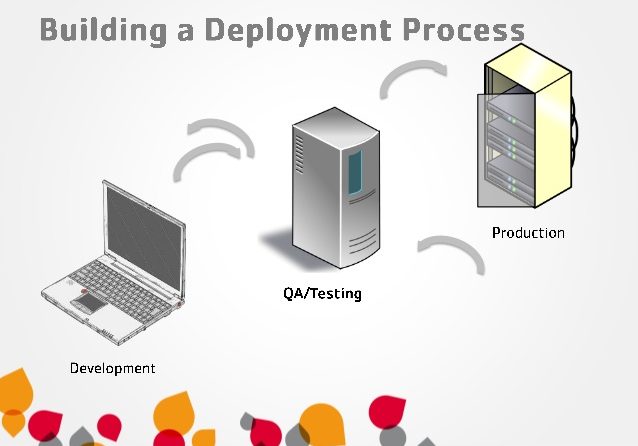
Deployments should be treated as part of a development workflow, not as an afterthought. If you are developing a web site or an application, your workflow will usually include at least three environments: Development, Staging and Production. In that case the workflow might look like this:

  • Developers work on bugs and features in separate branches. Really minor updates can be committed directly to the stable development branch.
  • Once features are implemented, they are merged into the staging branch and deployed to the Staging environment for quality assurance and testing.
  • Once testing is complete, feature branches are merged into the development branch.
  • On the release date, the development branch is merged into production and then deployed to the Production environment.

Let’s take a closer look at each environment to see what are the most efficient way to deploy each one of them.

Development Environment

If you make web applications, you don’t need a remote development environment, every developer should have their own local setup.

Many customers have Development environments set up with automatic deployments on every commit or push. While this gives developers a small advantage of not installing the site or the application on their computers to perform testing locally, it also wastes a lot of time. Every tiny change must be committed, pushed, deployed, and only then it can be verified. If the change was made by mistake, a developer will have to revert it, push it, then redeploy.

Testing on a local computer removes the need to commit, push and deploy completely. Every change can be verified locally first, then, once it’s more or less stable, it can be pushed to a Staging environment for proper quality assurance testing.

However, what this does provide, is an environment that can ensure the auto-deployment to environment is successful and runs in an independent installation process far removed from the developers’ environment.

We do not recommend using deployments for rapidly changing development environments. Running your software locally is the best choice for that sort of testing.

We recommend to deploy to the development environment automatically on every commit or push.  This will ensure that the build process is full working.

Staging Environment

Once the features are implemented and considered fairly stable, they get merged into the staging branch and then automatically deployed to the Staging environment. This is when quality assurance kicks in: testers go to staging servers and verify that the code works as intended.

It is very handy to have a separate branch called staging to represent your staging environment. It will allow developers to deploy multiple branches to the same server simultaneously, simply by merging everything that needs to be deployed to the staging branch. It will also help testers understand what exactly is on staging servers at the moment, just by looking inside the staging branch.

We recommend always deploying major releases to staging at a scheduled time, of which the whole team is aware of.

Production Environment

Once the feature is implemented and tested, it can be deployed to production. If the feature was implemented in a separate branch, it should be merged into a stable development branch first. The branches should be deleted after they are merged to avoid confusion between team members.

The next step is to make a to show the difference between the production and development branches to take a quick look at the code that will be deployed to production. This gives you one last chance to spot something that’s not ready or not intended for production. Things like debugger breakpoints, verbose logging or incomplete features.

Once the diff review is finished, you can merge the development branch into production and then initialize a deployment of the production branch to your production environment by hand. Specify a meaningful message for your deployment so that your team knows exactly what you deployed.

Make sure to only merge development branch into production when you actually plan to deploy. Don’t merge anything into production in advance. Merging on time will make files in your production branch match files on your actual production servers and will help everyone better understand the state of your production environment.

We recommend always deploying major releases to production at a scheduled time, this should be a MANUALLY process not automated (This can be as simple as clicking a link to start the process going or moving some files, it just needs to be a human who activates the process), of which the whole team is aware of.  Find the time when your application is least active and use that time to roll out updates. This may sound obvious, but make sure that it’s not too late in the day, because someone needs to be around after the deployment for at least a few hours to monitor the application and make sure the deployment went fine. Urgent production fixes can be deployed at any time.

After deployment finishes make sure to verify it. It is best to check all the features or fixes that you deployed to make sure they work properly in production. It is a big win if your deployment tool can send an email to all team members with a summary of changes after every deployment. This helps team members to understand what exactly went live and how to communicate it to customers. Beanstalk does this for you automatically.

Your deployment to production is now complete, time to pop champagne and celebrate with your team!

Rolling Back

Sometimes deployments don’t go as planned and things break. In that case you have the possibility to rollback. However, you should be as careful with rollbacks as with production deployments themselves. Sometimes a rollback brings more havoc than the issue it was trying to fix. So first of all stay calm and don’t make any sudden moves. Before performing a rollback, answer the following questions:

Did it break because of the code that I deployed, or did something else break?

You can only rollback files that you deployed, so if the source of the issues is something else a rollback won’t be much help.

Is it possible to rollback this release?

Not all releases can be rolled back. Sometimes a release introduces a new database structure that is incompatible with the previous release. In that case if your rollback, your application will break.

If the answer to both questions is “yes”, you can rollback safely. After rollback is done, make sure to fix the bug that you discovered and commit it to either the development branch (if it was minor) or a separate bug-fix branch. Then proceed with the regular bug-fix branch → staging; bug-fix → development → production integration workflow.

Deploying Urgent Fixes

Sometimes you need to deploy a bug-fix to production quickly, when your development branch is not ready for release yet. The workflow in that case stays the same as described above, but instead of merging the development branch into production you actually merge your bug-fix branch first into the development branch, then separately into production, without merging development into production. Then deploy the production branch as usual. This will ensure that only your bug-fix will be deployed to the production environment without all the other stuff from the development branch that’s not ready yet.

It is important to merge the bug-fix branch to both the development and production branches in this case, because your production branch should never include anything that doesn’t exist in your stable development branch. The development branch is where developers work all day, so if your fix is only in the production branch they will never see it and it can cause confusion.

Automatic Deployments to Production?

I can’t stress enough how important it is for all production deployments to be performed and verified by a responsible human being. Using automatic deployments for Production environment is dangerous and can lead to unexpected results. If every commit is deployed to your production site automatically, imagine what happens when someone commits something by mistake or commits an incomplete feature in the middle of the night when the rest of the team is sleeping? Using automatic deployments makes your Production environment very vulnerable. Please don’t do that, always deploy to production manually.

Permissions

Every developer should be able to deploy to the Staging environment. They just need to make sure they don’t overwrite each other’s changes when they do. That’s exactly why the staging branch is a great help: all changes from all developers are getting merged into it so it contains all of them.

Your Production environment, ideally, should only be accessible to a limited number of experienced developers. These guys should always be prepared to fix the servers immediately after a deployment went rogue.

Conclusion

We’ve been using this workflow with many customers for many years to deploy their application. Some of these things were learned the hard way, through broken production servers. Following these guidelines and all production deployments will become incredibly smooth and won’t cause any stress at all.

Orginal Article

Developing and Deploying with Branches

Table of Contents

Introduction

Getting started with Version Control can be an eye-opening experience. You may have already said to yourself, “How did I work without this?”. Now that you’ve got the basics of Version Control down, you want to start getting really productive by continuing to improve your workflow. Your next step is learning to code in branches.

Coding in branches is a simple practice that keeps you and your work more organised. Branches let you easily maintain your “in-progress” work separately from your completed, tested, and stable code. Not only is this an effective way to collaborate with others, but it will also allow you to automate the deployment of updates, when needed and fixes to your servers.

Coding in master/trunk “branches”

Even if you don’t know how to use branching in your development process, you’ve already been using a branch just by committing your code to version control. In all major version control systems, each repository contains at least one branch by default, your working branch:

  • in Subversion this is a folder called trunk,
  • in Git this is a branch called master.

Without configuring anything, your first commit to any repository will be made to this working branch.

Each version control system has a different approach to creating, merging, and deleting branches. We’ll be focusing on overall development process, and suggest that you refer to the documentation of your preferred VCS for specific details about commands:

Branching Workflow

Using branches can seem complicated without some guidance. We’re going to help you by focusing on two specific uses for branches and the benefits of having them in your workflow.

Benefits of Branches: Building Features & Fixing Bugs

Most coding falls into one of these two categories: you’re either building new features or fixing bugs in an existing codebase. A problem occurs when those two things need to be happen at the same time.

Imagine that you’ve recently launched big Feature X. Things are going well at first, so you move on to start the next task on your to-do list, awesome Feature Y. You start coding and committing changes to your repository, but along the way discover a problem with big Feature X that you need to fix right away. What do you do?

If all of your work is being done in the default working branch of your repository, you’ll need to figure out how to save the work you’ve done so far on Feature Y, revert your repository to the state it was in when you deployed Feature X, make your fix, and then re-introduce your work from Feature Y. This is messy, and you could potentially lose some of your work or introduce new bugs.

Instead, you should be doing all of your work in a feature or bug-fix branches and let the VCS do the hard work for you. You would branch your repository from the point where Feature X was deployed, creating an alternate working copy for you to do new work on. Your Feature Y branch includes the entire repository’s history and code, but a separate history “starts” from the moment the branch is created. This allows you to work on the Feature Y branch, committing to your hearts content, without disturbing the code that you deployed to release Feature X.

Only once the feature is tested and complete, ready for deployment, you can merge that branch back into your main working branch.

This also means you can switch between a feature branch to the default working branch any time to create new branches from that point – like the bug-fix that you need to make. After switching back to the working branch, you would create a bug-fix branch. Working on the bug-fix in its own branch might not seem necessary if the fix is small, but following this practice will help you avoid situations where small bug-fixes turn into bigger bug-fixes, potentially leaving your working branch in a messy state.

Best Practices with Feature & Bug Branches

  • Try to avoid committing unfinished work to your repository’s default working branch.
  • Create a branch any time you begin non-trivial work including features and complex bug-fixes.
  • Don’t forget to delete feature branches once they were merged into stable branch. This will keep your repository clean.

Benefits of Branching: Server Environment Branches

Another reason to use version control is so that you can use your repository as the source to deploy code to your servers. Much like feature and bug-fix branches, environment branches make it easy for you to separate your in-progress code from your stable code. Using environment branches and deploying from them means you will always know exactly what code is running on your servers in each of your environments.

We’ve been talking about your “default working branch” – but you can also think of this as your development environment branch. It’s a good idea to keep this branch clean – this is easily done by using feature and bug-fix branches and only merging them back to your development branch once they are tested. In other words, at any point in time your development branch should contain only stable code. Therefore, we will be using the name “stable” from now on in this guide to refer to this branch.

Using Production and Staging Branches

In addition to your development environment, you’re likely to have at least one other environment:production, where your website or application actually runs. Having a production environment branch and making that the only source of code that goes to production ensures that you have a snapshot of what is on your production server at any time, and a granular history of what’s been added to production and when.

In most cases you will have a staging environment as well, where your team or clients can review changes together. Having a staging environment branch will help you keep that environment with the same benefits as a production branch.

Diff Branches for Easy Code Review & Release Notes

When your development environment has been updated with features and bug-fixes that are tested, you can use your VCS to do a diff between your stable branch and staging branch to see what would be deployed that’s not currently on staging. This is a great opportunity to look for low quality or incomplete code, debug code, and other development leftovers that shouldn’t be deployed. This diff can also be helpful in writing your release notes.

Never Merge to Environment Branches Without Deploying

In order to keep your environment branches in sync with the environments, it’s a best practice to only execute a merge into an environment branch at the time you intend to deploy. If you complete a merge without deploying, your environment branch will be out of sync with your actual production environment.

With environment branches, you never want to commit changes directly to the branch. By only merging code from your stable branch into staging or production branches, you ensure that changes are flowing in one direction: from feature and bug-fix branches to stable and staging environments, and from stable to production. This keeps your history clean, and again, lets you be confident about knowing what code is running in which environments.


Best Practices with Environment Branches

  • Use your repository’s default working branch as your “stable” branch.
  • Create a branch for each environment, including staging and production.
  • Never merge into an environment branch unless you are ready to deploy to that environment.
  • Perform a diff between branches before merging—this can help prevent merging something that wasn’t intended, and can also help with writing release notes.
  • Merges should only flow in one direction: first from feature to staging for testing; then from feature to stable once tested; then from stable to production to ship.

Further Reading: Branching with Beanstalk

This is just an overview of some of the most common practices for using branches in version control. If you’re using Beanstalk, we’ve included some resources to help you take advantage of branching.

Original Article

Visual Studio Team Services Security

Using Azure can open up a can of worm around security and many customers have many concerns

Microsoft do a lot of things to keep your Team Service project safe and secure, refer to this link for details: Visual Studio Team Services Data Protection Overview.

You can deploy your own build agent which you can have full control and easy to configure your machines to only accept the deployment from that build agent.

Another URL link I found from Microsoft Virtual Learning which might be useful:

Getting Started with Azure Security for the IT Professional

Do IT security concerns keep you up at night? You’re not alone! Many IT Pros want to extend their organization’s infrastructure but need reassurance about security. Whether you are researching a hybrid or a public cloud model with Microsoft Azure, the question remains the same: Does the solution meet your own personal and your organization’s bar for security, including industry standards, attestations, and ISO certifications? In this demo-filled course, explore these and other hot topics, as a team of security experts and Azure engineers takes you beyond the basic certifications and explores what’s possible inside Azure. See how to design and use various technologies to ensure that you have the security and architecture you need to successfully launch your projects in the cloud. Dive into datacenter operations, virtual machine (VM) configuration, network architecture, and storage infrastructure. Get the information and the confidence you need, from the pros who know, as they demystify security in the cloud.

This article is very useful is you need to deploy from a remote server

http://myalmblog.com/2014/04/configuring-on-premises-build-server-for-visual-studio-online/

Azure Security Center

It is important that when using Azure that you take security very seriously, I’ve been looking around to see if I can get together as much information as I can to help businesses protect the environments that they relay on so much to run their businesses.

I found these short introductions to Azure Security Center which are worth looking over:

Introduction to Azure Security Center

A brief overview of how Azure Security Center helps you protect, detect and respond to cybersecurity threats.

Azure Security Center Overview

With Azure Security Center, you get a central view of the security state of all of your Azure resources. At a glance, verify that the appropriate security controls are in place and configured correctly. Scott talks to Sara Fender who explains it all!

Azure Security Center – Threat Detection

With Azure Security Center, you get a central view of the security state of all of your Azure resources. At a glance, verify that the appropriate security controls are in place and configured correctly. Scott talks to Sarah Fender who explains how Security Center integrates Threat Detection.

Azure Security Center – Focus on Prevention

Staying ahead of current and emerging threats requires an integrated, analytics-driven approach. By combining Microsoft global threat intelligence and expertise with insights into security-related events across your Azure deployments, Security Center helps you detect actual threats early, and it reduces false positives. Scott talks to Sara Fender who breaks down the details.

Downgrading WordPress

Have you ever updated to the newest version of WordPress, and then noticed that your site starts to have a bunch of problems? Don’t freak out. A lot of the times, it’s an issue with a plugin or theme that’s not compatible with the newest update. Sometimes (rarely) there’s an issue with the WordPress update itself. Whatever the case, one of of the quickest solutions to bring your site back to normal is to downgrade WordPress back to the previous version.

Compatibility issues are one of the reasons I try to avoid plugins and themes that don’t get updated regularly. I don’t want to be stuck with an older version of WordPress just because one of my plugins or themes doesn’t work with the latest update. Before you go through the process of downgrading, I’d suggest checking to see if a plugin is what’s causing the issue. If it is, you can just disable the plugin until there’s an update for it. If it’s a problem with the theme though, that’s an entirely different story. That’s when you’ll want to consider downgrading your version of WordPress.

Before you downgrade, I’d highly recommend making sure you have a backup of your site just in case things don’t go as planned and everything gets screwed up. I’ve never run into an issue but I always have the feeling that the one time I downgrade and my site goes berserk, I won’t have a backup. There are tons of backup plugins for WordPress and your web host might/should be able to provide you with the latest backup they have.

The first thing you’re going to need is a previous WordPress release. You can download any of the previous WordPress versions here –> backup plugins for WordPress. Only downgrade down to the version before the newest one. Don’t go way back into the archives to version 1.1. Some of the older versions of WordPress have security issues that could put your site at risk.

Here’s how to downgrade WordPress to an older version.

MANUAL WORDPRESS DOWNGRADE TUTORIAL

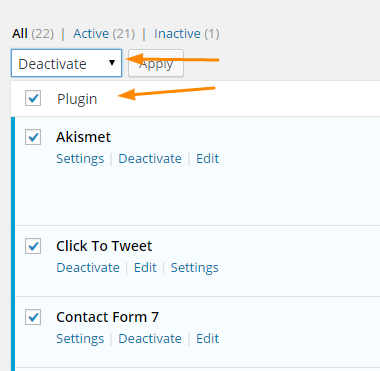
STEP 1: DEACTIVATE ALL YOUR PLUGINS

After you’ve created a backup of your site and downloaded the WordPress version you want to downgrade to, it’s time to actually downgrade. The first thing you want to do is login to your WP Dashboard and deactivate all of your plugins.
Deactivate-All-Wordpress-plugins

STEP 2: LOGOUT OF WORDPRESS

After all your plugins have been deactivated, logout of WordPress.

STEP 3: USE AN FTP CLIENT AND LOCATE YOUR SITE’S WORDPRESS FILES

This step will require that you have an FTP client. An FTP client allows you to access all of the files on your site. I use FireFTP from Firefox and FileZilla is another very popular option. Both are free and you can’t go wrong with either. The images in this tutorial are from FireFTP. In your FTP client, locate your WordPress files (wp-admin, wp-content, etc.). In FireFTP, they will be the first thing you see when you open your site’s folder.

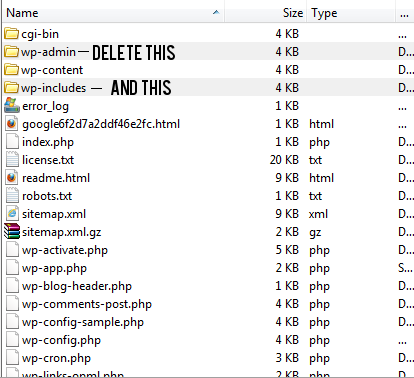
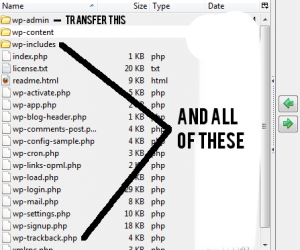
STEP 4: DELETE THE WP-ADMIN AND WP-INCLUDES FOLDERS

Delete both the wp-admin and wp-includes folders. Do not touch the wp-content folder! You can leave all of the other files alone because you will overwrite them in the next step.

how-to-downgrade-wordpress-step-2

STEP 5: TRANSFER THE FILES FROM THE PREVIOUS WP VERSION TO YOUR SITE WITH FTP

While you’re still in your FTP client, go into the folder where you have the WordPress version you want to downgrade to. Transfer over everything except the wp-content folder. After all the files have been transferred, your downgrade is finished.

how-to-downgrade-wordpress-step-3

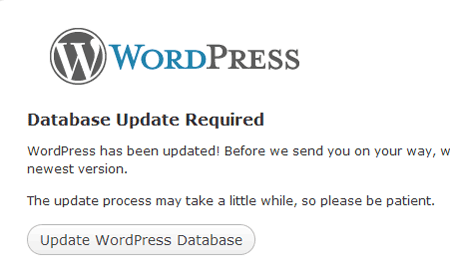
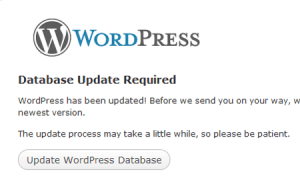
STEP 6: UPDATE YOUR WORDPRESS DATABASE

Login to your WP Dashboard. You will be prompted to update your WordPress database. Click on “Update WordPress Database” and then click continue to login.

update-wordpress-database

Once you’re logged in, you should see that you’re running whatever version of WordPress that you downgraded to. Congrats!

A word of caution. I don’t recommend using older versions of WordPress when newer ones are available. Like I said in the beginning, a lot of the updates come with security patches to stop known security threats that could leave your site open to hackers.

If your theme isn’t compatible with the most current version of WordPress, contact the theme developer and let them know. If there’s no support offered for your theme, then you’ll want to switch to a different one that’s updated on a regular basis.

Original article can be found here

WooCommerce Shortcodes

The first four shortcodes are used for special WooCommerce pages and are sometimes automatically inserted into the pages by WooCommerce during installation. They should not otherwise be used. All others can be used throughout and can be used more than once.


Shortcodes for WooCommerce sites only

Shortcode

Parameter

Meaning

woocommerce_cart

none

Shows the content of the cart page.

woocommerce_checkout

none

Shows the content of the checkout page.

woocommerce_order_tracking

none

Shows the user a form with which he can enquire about the status of his orders.

woocommerce_my_account

current_user, order_count

Shows the content of the user account page.


Non-specific WooCommerce shortcodes

Shortcode

Parameter

Meaning

recent_products

per_page, columns, orderby, order

Shows new products.

featured_products

per_page, columns, orderby, order

Shows featured products.

product

id or sku

Shows a single product.

products

ids or skus, columns, orderby, order

Shows several predetermined products.

add_to_cart

id or sku, style

Shows the price and the “add to cart” button of a single product.

add_to_cart_url

id or sku

Displays the URL of the “add to cart” button of a particular product in text form.

product_page

id or sku

Shows the detail page of a product.

product_category

per_page, columns, orderby, order, category

Shows the products in a category.

product_categories

number, orderby, order, columns, hide_empty, parent, ids

Shows existing product categories.

sale_products

per_page, columns, orderby, order

Shows products on offer.

best_selling_products

per_page, columns

Shows best-selling products.

top_rated_products

per_page, columns, orderby, order

Shows top-rated products.

product_attribute

per_page, columns, orderby, order, attribute, filter

Shows products with a particular attribute.

related_products

per_page, columns, orderby

Shows related products.

Note: The parameters orderby and order are WordPress-specific and are described in more detail in the Codex.


[woocommerce_cart]

Shows the content of the cart page and everything that comes with it; list of products in the basket, voucher entry, shopping cart total, Proceed to checkout button, product recommendation etc. This shortcode will be automatically inserted into the cart page when installing WooCommerce.

Parameter

  • none

Example

Crayon Syntax Highlighter v2.7.1

[woocommerce_cart]

1

[woocommerce_cart]

[Format Time: 0.0006 seconds]


[woocommerce_checkout]

Shows the content of the checkout page and everything that comes with it; invoice details, order overview Continue button etc. This shortcode will be automatically inserted into the checkout page when installing WooCommerce.

Parameter

  • none

Example

Crayon Syntax Highlighter v2.7.1

[woocommerce_checkout]

1

[woocommerce_checkout]

[Format Time: 0.0004 seconds]


[woocommerce_order_tracking]

Shows the user a form with which he can enquire about the status of his orders by stating the order number and email address. After entering the data, the customer is redirected to a page that displays the status and a summary of the order.

Parameter

  • none

Example

Crayon Syntax Highlighter v2.7.1

[woocommerce_order_tracking]

1

[woocommerce_order_tracking]

[Format Time: 0.0004 seconds]


[woocommerce_my_account]

Shows the content of the My Account page and everything that comes with it; overview of past orders, billing address and delivery address etc. The customer can also edit his data here. This shortcode will be automatically inserted into the My Account page when installing WooCommerce.

Parameter

  • current_user
  • default: ”
  • The customer whose My Account page is to be displayed.
  • This is determined automatically using the function get_user_by get_user_by( ‘id’, get_current_user_id() )
  • order_count
  • default: 15
  • Number of orders to be displayed, -1 for the display of all orders.

Example

Crayon Syntax Highlighter v2.7.1

[woocommerce_my_account order_count=”12″]

1

[woocommerce_my_account order_count=“12”]

[Format Time: 0.0005 seconds]


[recent_products]

Shows recently added products, sorted according to various criteria. For presentation purposes you can specify the number of products to be displayed per page and the number of columns.

Parameter

  • per_page
  • default: 12
  • Number of products displayed per page.
  • columns
  • default: 4
  • Number of columns.
  • orderby
  • default: date
  • Sort key.
  • order
  • default: desc
  • Sort order.

Example

Crayon Syntax Highlighter v2.7.1

[recent_products per_page=”12″ columns=”4″]

1

[recent_products per_page=“12” columns=“4”]

[Format Time: 0.0006 seconds]


[featured_products]

Shows featured products, sorted according to various criteria. For presentation purposes you can specify the number of products to be displayed per page and the number of columns. Comparable to recent_products.

Parameter

  • per_page
  • default: 12
  • Number of products displayed per page.
  • columns
  • default: 4
  • Number of columns.
  • orderby
  • default: date
  • Sort key.
  • order
  • default: desc
  • Sort order.

Example

Crayon Syntax Highlighter v2.7.1

[featured_products per_page=”12″ columns=”4″]

1

[featured_products per_page=“12” columns=“4”]

[product]

Shows a single product that is specified by the ID or the item number (SKU). Make sure the catalog visibility is not set to hidden or the product will not be shown. The ID of a product can be determined in the dashboard on the product page. It will be displayed when you hover the mouse over the product in the name column. You can find the item number in the Art.-Nr. column.

Parameter

  • id
  • default: ”
  • Product ID
  • sku
  • default: ”
  • Product item number

Examples

Crayon Syntax Highlighter v2.7.1

[product id=”99″]

1

[product id=“99”]

Crayon Syntax Highlighter v2.7.1

[product sku=”ART103″]

1

[product sku=“ART103”]


[products]

Displays several products, which are specified by their IDs or by their item number (SKU). Make sure the catalog visibility is not set to hidden or the product will not be shown. Comparable to product.

Parameter

  • id
  • default: ”
  • Product ID
  • sku
  • default: ”
  • Product item number
  • columns
  • default: 4
  • Number of columns.
  • orderby
  • default: title
  • Sort key.
  • order
  • default: asc
  • Sort order.

Examples

Crayon Syntax Highlighter v2.7.1

[products ids=”1, 2, 3, 4, 5″]

1

[products ids=“1, 2, 3, 4, 5”]

Crayon Syntax Highlighter v2.7.1

[products skus=”ART12, ART22, ART50″ orderby=”date” order=”desc”]

1

[products skus=“ART12, ART22, ART50” orderby=“date” order=“desc”]


[add_to_cart]

Shows the price and the Add to Cart button of a product, which is specified by the ID or the item number (SKU). The style parameter can be used for formatting.

Parameter

  • id
  • default: ”
  • Product ID
  • sku
  • default: ”
  • Product item number
  • style
  • default: border:4px solid #ccc; padding: 12px;
  • Formatting

Example

Crayon Syntax Highlighter v2.7.1

[add_to_cart id=”99″]

1

[add_to_cart id=“99”]


[add_to_cart_url]

Displays the URL of the add to cart button of a particular product in text form. The product is specified by the ID or the item number (SKU).

Parameter

  • id
  • default: ”
  • Product ID
  • sku
  • default: ”
  • Product item number

Example

Crayon Syntax Highlighter v2.7.1

[add_to_cart_url id=”99″]

1

[add_to_cart_url id=“99”]


[product_page]

Shows the detail page of a product which is specified by the ID or the item number.

Parameter

  • id
  • default: ”
  • Product ID
  • sku
  • default: ”
  • Product item number

Examples

Crayon Syntax Highlighter v2.7.1

[product_page id=”99″]

1

[product_page id=“99”]

Crayon Syntax Highlighter v2.7.1

[product_page sku=”ART103″]

1

[product_page sku=“ART103”]


[product_category]

Shows the products in a category which are specified by their permalink (slug). You can find the permalink in the dashboard under Products → Categories in the column Permalink.

Parameter

  • per_page
  • default: 12
  • Number of products displayed per page.
  • columns
  • default: 4
  • Number of columns.
  • orderby
  • default: title
  • Sort key.
  • order
  • default: desc
  • Sort order.
  • category
  • default: ”
  • Category slug.

Example

Crayon Syntax Highlighter v2.7.1

[product_category category=”musik”]

1

[product_category category=“musik”]


[product_categories]

Displays the product categories with the category image and if desired the number of products contained in each of the categories.

Parameter

  • number
  • default: null
  • Number of categories to be displayed. If null, then all are displayed.
  • columns
  • default: 4
  • Number of columns.
  • orderby
  • default: name
  • Sort key.
  • order
  • default: asc
  • Sort order.
  • hide_empty
  • default: 1
  • Specifies whether or not to display empty categories. 1 for yes, 0 for no.
  • parent
  • default: ”
  • If set to 0, only top level categories will appear.
  • ids
  • default: ”
  • The Ids of categories to be displayed. If not specified, all categories will be included.

Example

Crayon Syntax Highlighter v2.7.1

[product_categories number=”12″ parent=”0″]

1

[product_categories number=“12” parent=“0”]


[sale_products]

Shows the products that are currently on offer, sorted according to various criteria. For presentation purposes you can specify the number of products to be displayed per page and the number of columns.

Parameter

  • per_page
  • default: 12
  • Number of products displayed per page.
  • columns
  • default: 4
  • Number of columns.
  • orderby
  • default: title
  • Sort key.
  • order
  • default: asc
  • Sort order.

Example

Crayon Syntax Highlighter v2.7.1

[sale_products per_page=”12″]

1

[sale_products per_page=“12”]


[best_selling_products]

Shows best-selling products. The number of products displayed per page and the number of columns can be specified here.

Parameter

  • per_page
  • default: 12
  • Number of products displayed per page.
  • columns
  • default: 4
  • Number of columns.

Example

Crayon Syntax Highlighter v2.7.1

[best_selling_products per_page=”12″]

1

[best_selling_products per_page=“12”]


[top_rated_products]

Shows top-rated products. Sorting according to various criteria possible.

Parameter

  • per_page
  • default: 12
  • Number of products displayed per page.
  • columns
  • default: 4
  • Number of columns.
  • orderby
  • default: title
  • Sort key.
  • order
  • default: asc
  • Sort order.

Example

Crayon Syntax Highlighter v2.7.1

[top_rated_products per_page=”12″]

1

[top_rated_products per_page=“12”]


[product_attribute]

Shows products with a particular property and the specified values for that property. Sorting according to various criteria possible.

Parameter

  • per_page
  • default: 12
  • Number of products displayed per page.
  • columns
  • default: 4
  • Number of columns.
  • orderby
  • default: title
  • Sort key.
  • order
  • default: asc
  • Sort order.
  • attribute
  • default: ”
  • The property that the products must have in order to be displayed.
  • They will only appear if the parameter is used.
  • filter
  • default: ”
  • The value of the property the products must possess in order to be displayed.
  • They will only appear if the parameter is used.

Example

Crayon Syntax Highlighter v2.7.1

[product_attribute attribute=”farbe” filter=”schwarz”]

1

[product_attribute attribute=“farbe” filter=“schwarz”]


[related_products]

Shows similar products. Similar products are determined on the basis of categories and tags. This shortcode must be used within a product detail page.

Parameter

  • per_page
  • default: 2
  • Number of products displayed per page.
  • columns
  • default: 2
  • Number of columns.
  • orderby
  • default: rand
  • Sort key.

Example

Crayon Syntax Highlighter v2.7.1

[related_products per_page=”12″ orderby=”title”]

1

[related_products per_page=“12” orderby=“title”]

Caution: The per_page parameter specifies how many items to display on a page. The pagination function is not automatically generated. The per_page and columns parameters determine how many products and columns will be displayed. Whether this actually works and for which parameter values, is highly dependent on the layout of your theme. This requires some trial and error and reworking of the CSS.

The original documentation can be found on these WooThemes pages. Some shortcodes have been removed since WooCommerce 2.1.x. These shortcodes have not been described here. If required, you can also find them in the WooThemes documentation.

How to move a Joomla website

So I’ve been volunteering for an NGO called Otra Cosa Network in Peru and as part of my volunteering I have been teaching young children to swim, but of course I get roped into helping with their website.  A busman’s holiday I know..!

So their existing website is using Joomla so the first step for me is to back a backup copy of the existing Joomla website.

I found JoomlaPack, which is now called Keeba Backup, which can be found here:

https://www.akeebabackup.com/download.html

They recommend you follow the videos on their website

https://www.akeebabackup.com/videos/1212-akeeba-backup-core/1615-abtc01-installation-first-backup.html

Now that you are able to backup the website, I needed to restore the live website to backup site, to do this you need to download Keeba KickStart and unzip the files, taking just the kickstart.php file which you’ll need to add to the root folder of the new website, also copy across the backup file you wish to restore.

A backup of your web site is only useful if you can restore it – perhaps you need to transfer your web host or even move the site from a development server to a live server.

Like always I have attached the version I worked with at the bottom of this post.

Here is a step by step process for you to restore the backup you have just taken:

Or you can watch the video here

  1. To begin with, take a brand new backup of your web site.
  2. Once the backup is complete, go to Manage Backups and download the backup file to your computer.
  3. Now we’ve downloaded the backup file, we need an additional program called Kickstart which you can find at the akeebabackup.com web site.
  4. Go to downloads. Scroll down to Akeeba Kickstart and click Download to download the file to your computer.
  5. The Kickstart program is NOT a Joomla extension. Here we can see that the Kickstart program is a zip file and we need to extract that.
  6. On most operating systems you can do that simply by double clicking on the file name.
  7. We can see we now have a new folder with all the kickstart files in it.
  8. The only one that you actually need is the kickstart.php file; all the rest are language translations.
  9. We now need to transfer the kickstart.php and our backup to our brand new web host, and to do that we will use a FTP program.
  10. I am going to use filezilla but you can use any ftp program that you like.
  11. To begin with, connect to your NEW server.
  12. Once connected, make sure you are in the public html or the web root of your server.
  13. Now you need to transfer the backup file from our local computer to our live server. I am just going to pick that up and drag it across.
  14. You can see the upload is taking place. We now have the backup file on the new server.
  15. We now need to take that kickstart.php file and do exactly the same thing. Select it and drag it across.
  16. That’s it with the filezilla for now so let’s go back to our web browser and go to our brand new web site.
  17. As you can see I have a holding page in place to show that the web site is coming soon.
  18. So just go to the special url for kickstart.php. The kickstart program is now running.
  19. Kickstart is NOT an installation program, it is a special archive extraction tool.
  20. We can click here to remove this message and we can see here that it has detected the archive file.
  21. We have several methods of extracting the files. On most good web hosts, we can use the hybrid method.
  22. Finally click START to begin the extract process.
  23. Kickstart has now extracted the backup file and provides a link to the installer that was built in to that backup.
  24. The installer is a very simple process. We begin with the required settings. As you can see, they are all set to yes. If any are set to No, you won’t be able to proceed and you need to speak to your web hosts to rectify the errors.
  25. We can now click Next.
  26. I know need to enter the database connection details that I have got from my web host.
  27. Enter the server hostname (which is usually localhost, but that may depend on your hosting) and your DATABASE username and password. And finally the database name that you want to install your web site on. Again this is something that your host will have provided to you or you will have set up yourself within your hosts control panel.
  28. And click next.
  29. The restoration process of the database has now been processed and we can click to continue.
  30. We have now have the opportunity if we wish to change the site name and the email address. In most cases when you are restoring a site you won’t need to do this.
  31. If we scroll down there is also the opportunity to change the password and email address of the Super Administrator.
  32. Finally, click Next again.
  33. The sites configuration has all been setup.
  34. Now what we need to do is close this window and when we are now back at the Akeeba Kickstart program and click on Cleanup.
  35. This will remove the kickstart.php file and that big backup archive.
  36. Now that we’re done we can visit our website and here we can see that the web site has now been transferred from our old hosting account to our new one.


com_akeeba-4.5.5-core.zip (2.48 mb)

kickstart-core-4.1.4.zip (267.22 kb)

The way to handle unauthorised requests to Ajax actions in ASP.NET MVC

Problem

I have created a view that posts to an action via Ajax with the expectation that the action will return the requested data or an empty string.  Even better, I would like it to be configurable to return whatever value I see fit.

The problem arises when I decorate the called action with the [Authorize] attribute.  If the request is not authorized and I have a loginUrl configured in my web.config, my ajax request will return the html output of my loginUrl view.  That is undesirable.

Solution

I can extend the existing Authorize attribute by inheriting from the AuthorizeAttribute class.  Here is the code that extends the Authorize attribute:

public class AjaxAuthorizeOverrideAttribute : AuthorizeAttribute
    {
        public string View { get; set; }

        protected override void HandleUnauthorizedRequest(AuthorizationContext filterContext)
        {
            if (!filterContext.HttpContext.Request.IsAjaxRequest())
            {
                base.HandleUnauthorizedRequest(filterContext);
                return;
            }

            filterContext.Result = new ViewResult { ViewName = View };
            filterContext.Result.ExecuteResult(filterContext.Controller.ControllerContext);
        }
    }

Here is the decorator for the ajax action in the controller class:

[AjaxAuthorizeOverride(View="AjaxAuthorizeError")]

public ActionResult AjaxRequest()
{
     return View();
}

Note: there is no default view page being rendered.


Original article can be found here