Category Archives: Uncategorized
Inline Editing
I needed a simple way of editing the text on the screen, without the need to open up or view a second screen, so I had a look around for some jQuery, and came across this very good jQuery plugin from Mika Tuupola, jEditable
For a live demo of jEditable click here
I am just so impressed with what you can do with jQuery, it’s making JavaScript work the way it should have done all those years ago.
10 cool things you can do with a USB flash drive
Came across this nice article on different uses for your USB flash drive
Transporting your data is probably the most common use for a USB flash drive. But there’s a world of other things you can do with these handy pocket-size drives. Here are 10 ways you can use that USB flash drive to do more than just move data
1: Run portable applications
In addition to storing your data, you can run portable applications from a USB flash drive. For example, OpenOffice, which is a complete office suite that includes a word processor, spreadsheet, presentation tool, drawing package, and database, is available as a portable application. Mozilla Firefox and Thunderbird are also available as portable applications. When you combine the office suite with the ability to surf the Web and check email, you’ll be able to take your most vital computing applications with you wherever you go — right in your pocket.
If that’s not enough, you can choose other applications to install on your USB flash drive from PortableApps.com (Figure A). You can even install an entire prepackaged suite of applications that includes such things as an audio player, games, an antivirus utility, and a handy menu system.
Figure A
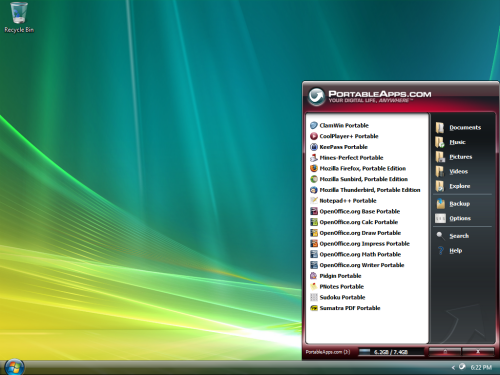
The PortableApps.com suite comes with a menu system to allow you to easily access your portable applications.
2: Boot an operating system
If you want to do more than just run your own applications, you might want to consider booting an entire operating system from your USB flash drive. You can boot either Windows or Linux from a USB flash drive; however, the process is not an exact science and you may be in for a technical adventure.
Fortunately, there are some guides you can follow. To learn how to boot Windows XP from a USB flash drive, see the article Creating a bootable USB flash drive for Windows XP. To learn how to boot a version of Linux from a USB flash drive, see the articlePuppy Linux teaches an old dog new tricks.
3: Connect to a wireless network
If you have a wireless network, you can use the Wireless Network Setup Wizard in Windows XP or the Windows Connect Now (WCN) feature built into Vista to save wireless network configuration information to a USB flash drive. You can then use your drive to quickly and easily connect another computer or a WCN-compatible device, such as a router or printer, to your wireless network. To learn more about using the Wireless Network Setup Wizard, see the Help And Support Center, which is accessible from Windows XP’s Start menu. To learn more about using the Windows Connect Now feature, see Windows Help And Support, which is accessible from Windows Vista’s Start menu.
4: Create a password reset disk
A password reset disk can really come in handy if you forget the password to your user account on a Windows system that is not a part of a domain. If you find yourself in that situation, you can use the password reset disk to reset your password and quickly get back into your user account. In Windows Vista, you can use USB flash drive rather than a floppy disk as a password reset disk (Figure B). For details on how to do so, see the article Create a Vista password reset disk using a USB flash drive.
Figure B
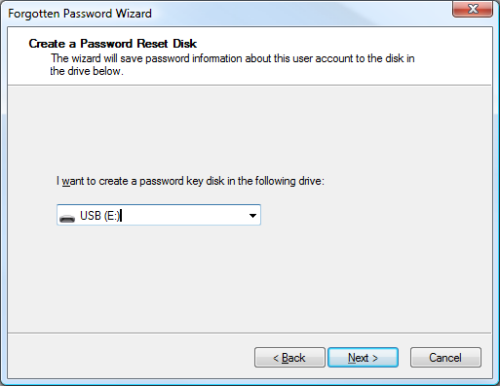
You can use your USB flash drive as a password reset disk.
5: Boost performance
If you’re running Windows Vista, you can use a USB flash drive to speed up your system with the ReadyBoost technology. ReadyBoost can use the storage space on a USB Flash drive as an additional memory cache to aid the memory cache on your hard disk. And because flash memory is more responsive than a hard disk, with its physical moving parts, the memory cache provided by ReadyBoost can significantly improve system responsiveness.
Using ReadyBoost is easy. You just insert your USB flash drive into your Vista system and follow the onscreen prompts to configure and use ReadyBoost. If you want more details, check out the article How SuperFetch and ReadyBoost work together.
6: Manage it
If all you really want to do with your USB flash drive is transport data, and you’re running Windows XP, you can do so more efficiently with the Microsoft USB Flash Drive Manager (Figure C). Once you have installed this manager, you can easily copy files to and from your drive, back up and restore the entire flash drive to and from your hard disk, change the drive label, and even create an autorun.inf file to launch Drive Manager automatically when you plug in the drive. To learn more about and download the USB Flash Drive Manager visit the Microsoft TechNet Magazine site.
Figure C
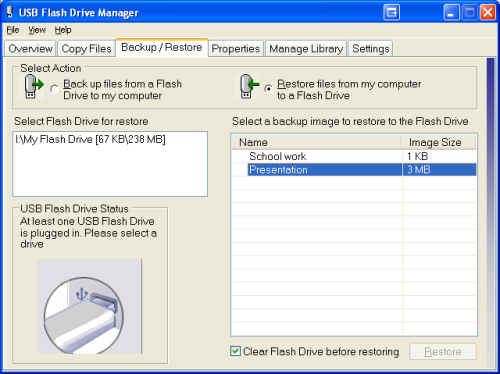
The Microsoft USB Flash Drive Manager provides you with a host of features, such as drive backup.
7: Use it as an MP3 player
Would you like to be listening to music when you’re using a computer at the office, but you don’t have an MP3 player? If so, you can use a USB flash drive as an MP3 player along with Windows Media Player and a set of headphones. Just copy your MP3 files to your USB flash drive, plug it into your computer, and direct Windows Media Player to build a library of the songs on your drive. You can use all of Windows Media Player’s playback features, such as playlists and favorites, to easily customize your music listening experience. And best of all, you won’t have to worry about running low on battery power.
8: Password-protect it
If you use a USB flash drive to transport sensitive data that you would prefer to protect from prying eyes, should you lose the drive, Rohos Mini Drive (Figure D) can safeguard that data. This security tool allows you to create a secret partition on the drive and then password-protect/encrypt that partition, thus protecting any documents you copy to that partition via the utility’s file manager. You can download (and read a review of) Rohos Mini Drive at Download.com.
Figure D
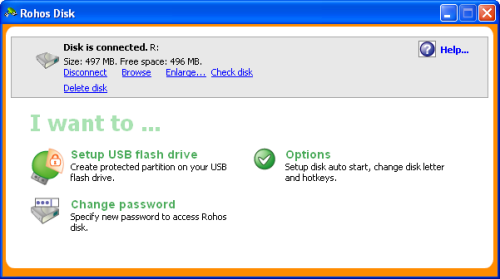
Using Rohos Mini Drive, you can secure sensitive files on your USB flash drive.
9: Run a Web site from it
If you are a Web developer, you may be interested to know that with Server2Go, you can easily run a Web server that supports Apache, PHP, MySQL, and Perl right from a USB flash drive. You can use Server2Go right out of the box without any installation. It runs on all versions of Windows, supports most common browsers, and is completely free. To a developer, the benefits of having a portable Web server on a USB drive are numerous. For example, imagine being able to carry a live Web site demo into a sales pitch meeting. For more information about this package, visit the Server2Go site.
10: Lock your PC
Have you ever seen a movie in which a person in some secret government installation simply inserts and removes a card to log in and log out of a PC? If you thought that idea was cool, you’ll definitely want to investigate Predator (Figure E). Once installed and configured, this little freeware utility will allow you to turn a USB flash drive into a key you can use to lock and unlock your computer.
Figure E
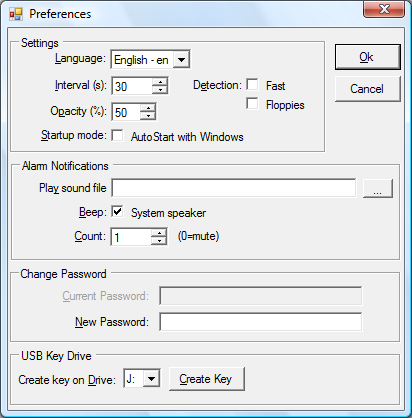
With Predator, you can use a USB flash drive as a key to lock and unlock your computer.
While the USB flash drive is connected to your computer, everything works as it normally would. Once you remove the USB flash drive, your computer is locked down — the keyboard and mouse are disabled and the screen darkens. To unlock your computer, you just plug in the USB flash drive and the computer will be unlocked and you can begin using it. To learn more about Predator, and/or to download it, visit the developer’s Web site.
If Browsers were women
MVC 2 Preview 1
The first of the next version of MVC 2 has been release by Microsoft, a few nice features, which has extended the Html helpers.
The full release will be shipped with Visual Studio 2010, and a version will be available for download for Visual Studio 2008 sp1 at the same time.
Why not watch it on Channel 9 – ASP.NET MVC 2 Preview 1 with Phil Haack and Virtual Scott
For more details check out Haacked
ASP.NET MVC Futures
Where are those extra features that did not quite make it in the initial release of ASP.MVC 1.0, they can be found on Code Plex, ASPNET
ASP.NET MVC Futures – Microsoft.Web.Mvc
The following are a few items in the ASP.NET MVC Futures assembly:
- AsyncController
- ButtonBuilder
- Html.Substitute CacheExtension
- FileCollectionModelBinder
- LinqBinaryModelBinder
- Html.Mailto Helpers
- SkipBindingAttribute
- RequireSslAttribute
- AcceptAjaxAttribute
- Html.RenderAction and Html.RenderRoute Extensions
- Repeater Control
- ByteArrayModelBinder
and more, for more details check out Maarten Balliauw Blog
DDD South West Video
After a great DDD South West, now comes the video, great production, setting a high standard for years to come
Deploying MVC on IIS 6
If and when you have to deploy your MVC application, you’ll soon find out that IIS6 does not support Url Rewriting. There are a number of options available to you, for a good list check out Steve Sanderson’s Deploying ASP.NET MVC to IIS 6, the one I’m currently using is:
Use a wildcard mapping for aspnet_isapi.dll
This tells IIS 6 to process all requests using ASP.NET, so routing is always invoked, and there’s no problem. It’s dead easy to set up: open IIS manager, right-click your app, go to Properties, then Home Directory tab, then click Configuration. Under Wildcard application maps, click Insert (not Add, which is confusingly just above), then enter C:\WINDOWS\Microsoft.NET\Framework\v2.0.50727\aspnet_isapi.dll for “Executable”, and uncheck Verify that file exists.
Done! Routing now just behaves as it always did in VS2008’s built-in server.
Unfortunately, this also tells IIS to use ASP.NET to serve all requests, including for static files. It will work, because ASP.NET has a built-in DefaultHttpHandler that does it, but depending on what you do during the request, it might use StaticFileHandler to serve the request. StaticFileHandler is much less efficient than IIS natively. You see, it always reads the files from disk for every request, not caching them in memory. It doesn’t send Cache-Control headers that you might have configured in IIS, so browsers won’t cache it properly. It doesn’t do HTTP compression. However, if you can avoid interfering with the request, DefaultHttpHandler will pass control back to IIS for native processing, which is much better.
For small intranet applications, wildcard mappings are probably the best choice. Yes, it impacts performance slightly, but that might not be a problem for you. Perhaps you have better things to worry about.
For larger public internet applications, you may need a solution that delivers better performance.
Snippet taken from Steve Sanderson’s Deploying ASP.NET MVC to IIS 6
For more information take a look at ScottGu’s blog, Tip/Trick: Url Rewriting with ASP.NET
Also worth taking a look at Phil Haacked articles on ASP.NET MVC on IIS 6 Walkthrough
Culture Codes
A comprehensive list of culture codes used for localising and in conjunction with the CultureInfo class.
The CultureInfo class specifies a unique name for each culture, based on RFC 4646 (Windows Vista and later). The name is a combination of an ISO 639 two-letter lowercase culture code associated with a language and an ISO 3166 two-letter uppercase subculture code associated with a country or region.
| Code | Language – Country/Region | Code | Language – Country/Region |
|---|---|---|---|
| af | Afrikaans | hu-HU | Hungarian – Hungary |
| af-ZA | Afrikaans – South Africa | is | Icelandic |
| sq | Albanian
|
is-IS | Icelandic – Iceland |
| sq-AL | Albanian – Albania | id
|
Indonesian |
| ar | Arabic | id-ID | Indonesian – Indonesia
|
| ar-DZ | Arabic – Algeria | it | Italian |
| ar-BH | Arabic – Bahrain | it-IT | Italian – Italy |
| ar-EG | Arabic – Egypt | it-CH | Italian – Switzerland |
| ar-IQ | Arabic – Iraq | ja | Japanese |
| ar-JO | Arabic – Jordan | ja-JP | Japanese – Japan |
| ar-KW | Arabic – Kuwait | kn | Kannada |
| ar-LB | Arabic – Lebanon | kn-IN | Kannada – India |
| ar-LY
|
Arabic – Libya | kk | Kazakh |
| ar-MA | Arabic – Morocco
|
kk-KZ | Kazakh – Kazakhstan |
| ar-OM | Arabic – Oman | kok
|
Konkani |
| ar-QA | Arabic – Qatar | kok-IN | Konkani – India
|
| ar-SA | Arabic – Saudi Arabia | ko | Korean |
| ar-SY | Arabic – Syria | ko-KR | Korean – Korea |
| ar-TN | Arabic – Tunisia | ky | Kyrgyz |
| ar-AE | Arabic – United Arab Emirates | ky-KG | Kyrgyz – Kyrgyzstan |
| ar-YE | Arabic – Yemen | lv | Latvian |
| hy | Armenian | lv-LV | Latvian – Latvia |
| hy-AM | Armenian – Armenia | lt | Lithuanian |
| az
|
Azeri | lt-LT | Lithuanian – Lithuania |
| az-AZ-Cyrl | Azeri (Cyrillic) – Azerbaijan
|
mk | Macedonian |
| az-AZ-Latn | Azeri (Latin) – Azerbaijan | mk-MK
|
Macedonian – Former Yugoslav Republic of Macedonia |
| eu | Basque | ms | Malay
|
| eu-ES | Basque – Basque | ms-BN | Malay – Brunei |
| be | Belarusian | ms-MY | Malay – Malaysia |
| be-BY | Belarusian – Belarus | mr | Marathi |
| bg | Bulgarian | mr-IN | Marathi – India |
| bg-BG | Bulgarian – Bulgaria | mn | Mongolian |
| ca | Catalan | mn-MN | Mongolian – Mongolia |
| ca-ES | Catalan – Catalan | no | Norwegian |
| zh-HK
|
Chinese – Hong Kong SAR | nb-NO | Norwegian (Bokm?l) – Norway |
| zh-MO | Chinese – Macao SAR
|
nn-NO | Norwegian (Nynorsk) – Norway |
| zh-CN | Chinese – China | pl
|
Polish |
| zh-CHS | Chinese (Simplified) | pl-PL | Polish – Poland
|
| zh-SG | Chinese – Singapore | pt | Portuguese |
| zh-TW | Chinese – Taiwan | pt-BR | Portuguese – Brazil |
| zh-CHT | Chinese (Traditional) | pt-PT | Portuguese – Portugal |
| hr | Croatian
|
pa | Punjabi |
| hr-HR | Croatian – Croatia | pa-IN | Punjabi – India |
| cs | Czech | ro | Romanian |
| cs-CZ | Czech – Czech Republic | ro-RO | Romanian – Romania |
| da
|
Danish | ru | Russian |
| da-DK | Danish – Denmark
|
ru-RU | Russian – Russia |
| div | Dhivehi | sa
|
Sanskrit |
| div-MV | Dhivehi – Maldives | sa-IN | Sanskrit – India
|
| nl | Dutch | sr-SP-Cyrl | Serbian (Cyrillic) – Serbia |
| nl-BE | Dutch – Belgium | sr-SP-Latn | Serbian (Latin) – Serbia |
| nl-NL | Dutch – The Netherlands | sk | Slovak |
| en | English | sk-SK | Slovak – Slovakia |
| en-AU | English – Australia | sl | Slovenian |
| en-BZ | English – Belize | sl-SI | Slovenian – Slovenia |
| en-CA | English – Canada | es | Spanish |
| en-CB
|
English – Caribbean | es-AR | Spanish – Argentina |
| en-IE | English – Ireland
|
es-BO | Spanish – Bolivia |
| en-JM | English – Jamaica | es-CL
|
Spanish – Chile |
| en-NZ | English – New Zealand | es-CO | Spanish – Colombia
|
| en-PH | English – Philippines | es-CR | Spanish – Costa Rica |
| en-ZA | English – South Africa | es-DO | Spanish – Dominican Republic |
| en-TT | English – Trinidad and Tobago | es-EC | Spanish – Ecuador |
| en-GB | English – United Kingdom | es-SV | Spanish – El Salvador |
| en-US | English – United States | es-GT | Spanish – Guatemala |
| en-ZW | English – Zimbabwe | es-HN | Spanish – Honduras |
| et | Estonian | es-MX | Spanish – Mexico |
| et-EE
|
Estonian – Estonia | es-NI | Spanish – Nicaragua |
| fo | Faroese
|
es-PA | Spanish – Panama |
| fo-FO | Faroese – Faroe Islands | es-PY
|
Spanish – Paraguay |
| fa | Farsi | es-PE | Spanish – Peru
|
| fa-IR | Farsi – Iran | es-PR | Spanish – Puerto Rico |
| fi | Finnish | es-ES | Spanish – Spain |
| fi-FI | Finnish – Finland | es-UY | Spanish – Uruguay |
| fr | French | es-VE | Spanish – Venezuela |
| fr-BE | French – Belgium | sw | Swahili |
| fr-CA | French – Canada | sw-KE | Swahili – Kenya |
| fr-FR | French – France | sv | Swedish |
| fr-LU
|
French – Luxembourg | sv-FI | Swedish – Finland |
| fr-MC | French – Monaco
|
sv-SE | Swedish – Sweden |
| fr-CH | French – Switzerland | syr
|
Syriac |
| gl | Galician | syr-SY | Syriac – Syria
|
| gl-ES | Galician – Galician | ta | Tamil |
| ka | Georgian | ta-IN | Tamil – India |
| ka-GE | Georgian – Georgia | tt | Tatar |
| de | German | tt-RU | Tatar – Russia |
| de-AT | German – Austria | te | Telugu |
| de-DE | German – Germany | te-IN | Telugu – India |
| de-LI | German – Liechtenstein | th | Thai |
| de-LU
|
German – Luxembourg | th-TH | Thai – Thailand |
| de-CH | German – Switzerland
|
tr | Turkish |
| el | Greek | tr-TR
|
Turkish – Turkey |
| el-GR | Greek – Greece | uk | Ukrainian
|
| gu | Gujarati | uk-UA | Ukrainian – Ukraine |
| gu-IN | Gujarati – India | ur | Urdu |
| he | Hebrew | ur-PK | Urdu – Pakistan |
| he-IL | Hebrew – Israel | uz | Uzbek |
| hi | Hindi | uz-UZ-Cyrl | Uzbek (Cyrillic) – Uzbekistan |
| hi-IN | Hindi – India | uz-UZ-Latn | Uzbek (Latin) – Uzbekistan |
| hu | Hungarian | vi | Vietnamese |
Asp.net MVC, Html.DropDownList and Selected Value
I recently ran into the altogether common problem of the Html.DropDownList helper rendering a drop down list with no value selected. This is a major problem when editing data as by default, the first value is selected and saving would mean the first value is used.
There have been a few issues resulting in the same error. My issue was that I was setting the Name of the drop down list to be equal to the property on my model. I was using the Entity Framework, and had an Image class with a navigation property called Category. I was using this to render the ddl:
<%= Html.DropDownList(“Category”, (IEnumerable<SelectListItem>)ViewData[“categories”])%>
In my controller, I was setting the ViewData like this:
this.ViewData[“categories”] = new SelectList(db.CategorySet.ToList(), “CategoryId”, “Title”, img.CategoryReference.EntityKey);
Unfortunately, even though I had set the selected value (third parameter to the SelectList constructor), the ddl had no value selected.
The fix was quite simple:
<%= Html.DropDownList(“CategoryId”, (IEnumerable<SelectListItem>)ViewData[“categories”])%>
I just changed the Name of the drop down and handled the assignment in the controller.
The reason behind this problem is that asp.net MVC first looks for a match between the name of the drop down and a property on the model. If there’s a match, the selected value of the SelectList is overridden. Changing the name of the drop down is all it takes to remedy the issue.