Okay it has taken me quite a while, but I finally found this Blog on how to publish to the Microsoft Cloud.
Not for getting you'll need an activation key Id to enable your services, I'm still trying to get mine.
Okay it has taken me quite a while, but I finally found this Blog on how to publish to the Microsoft Cloud.
Not for getting you'll need an activation key Id to enable your services, I'm still trying to get mine.
With Microsofts Cloud now available in CTP, I am looking at writing a blog entry about this great technology, but in the mean time if you are planning to use the Azure Tables, then it is worth checking out Chris Hays blog on Azure Tables
Azure Tables, Entities and Partition Diagrams
It give a good explaination of the Partition Key.
Always good to go back to basics, where ever I go I have the need to generate a security environment which is based on the MembershipProvider.
There are lots of examples out on the Internet so it makes it hard to find what you are after, everytime I end up back at the same website, as it take you through the basic Membership and then goes in to it in depth, such as switching users if you are an administrator.
Examining ASP.NET 2.0’s Membership, Roles, and Profile
Manage Custom Security Credentials the Smart (Client) Way
Not every application is a Web Based application, people still create WinForm application, so if you are using a WinForm application it’s worth looking at this article
Using the ASP.NET membership provider in a Windows forms application
Just been playing with Live Mesh Beta.
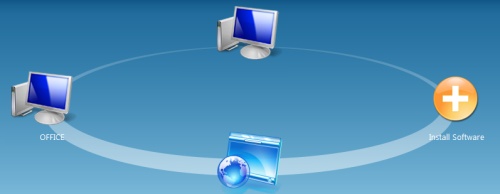
So easy to setup, just visit https://www.mesh.com
You can either run the application from the web browser, or install a local client to your PC.
So I went to take and install the local client on my machine at home, asked it to share a few files, well I also choose a complete folder which contains about 25 Gbyes of information.
When I got to work I went to Live Mesh, sign in, using my MSN login, and as if by magic it appeared I could see all my files. Only issue I had was that the limit of 5 Gbytes was hit. So I removed the large folder from the Mesh, and everything was fine.
I install the Live Mesh local on my machine at work, again very simple, and wow I had my files on my desktop, a simple sync process and I could open my files, edit and save them as if they where local.

When you are in a Live Mesh folder, a small bar on the right handside appears which allows you to connect with any machine you have registered, but then I caught sight of Live Desktop, click on it, a small ActiveX install and, hay, I have full access to my home desktop from anywhere on the Internet. I am so impressed.
The current limit of 5 Gbytes of storage space can be a bit limited at present, but I heard on the grape vine that you can tweek Live Mesh to work Peer to Peer and by pass the Live Mesh online storage.
Overall I am very impressed, it might be in Beta and only provide 5Gbytes of space, but it solves a long standing issue of beable to access your files from anywhere.
It will be interesting to see what business model Microsoft is to use with Live Mesh goes live.
There is an increasing number of Team Foundation Server Addon's, here are a list that might be of use
Working remotely and need to collaborate, check this out Working Skype Collaboration Provider for TFS
I’ll start this article, and list different ways to perform Web Testing
An old favourite of mine Microsoft Web Application Stress Testing
I am sure there are lots of different Web testing tools, and as I find them I will try and list them here.
QUESTION: What is the easiest way to find the difference between two dates?
DateTime userLoginTime = (DateTime)roteTimeout.LastLoginTime;
TimeSpan span = DateTime.Now.Subtract(userLoginTime);
if (span.Seconds > userTimeout.TimeoutPeriod)
{
}
Have you tried to write to the Event Log from within your application?
It's not hard to write to the Event Log these days, in fact .Net makes it quite easy.
Where the issue come is when you deploy your application you find the the operating environment does not have enough permissions. I found a good article this morning on how to over come this by Rory Primrose
http://www.neovolve.com/post/2008/11/12/Creating-event-log-sources-without-administrative-rights/
I will take you through how to deploy your own Custom Data Process Extension for SQL Server Reporting Server 2005, both on the server and for use within your development environment.
I've been using and writing Reports for SQL Server Reporting Services for some time now, and it has come time to write my own Security Implementation for the reports. In order for me to do this, I needed to find out how to change the Data Sources within Reporting Services.
I did find some resource information on Microsoft TechNet: Implementing a Data Processing Extension. I found this article both useful and hard to follow, hence I have written this CodeProject article to help you get up and going as quickly as possible.
After loading the source code, you will need to reference the "Reporting Services Interfaces". In my case, it is located in: C:\Program Files\Microsoft SQL Server\90\SDK\Assemblies\Microsoft.ReportingServices.Interfaces.dll; however, this may differ for your installation.
Once you have made the reference, you should be able to compile the application.
After downloading the source above for the custom data processing extension, you must install it to enable access. The installation process is performed in two steps:
This particular extension is used both by the Reporting Server and within the Visual Studio 2005 Report Designer; both have a different location for configuration, either on the server or your development machine. However both configurations are very similar.
Two configuration files are required to be changed in order for you to be able to see your Custom Data Source from within the development environment. These files typically are held in C:\Program Files\Microsoft Visual Studio 8\Common7\IDE\PrivateAssemblies; these files are:
First, you need to copy the Custom Data Source files to the "PrivateAssemblies" folder, as this is where they are referenced.
The RSReportDesigner.config holds the reference to the Extension. The following needs to be added to the <Data> tag within the <Extension> tag:
 Collapse
<Extension Name="CUSTOM_DATASOURCE" Type="DataSourceExtension.DataSetConnection, DataSourceExtension" />
In order for the designer to use the Custom Data Source, you need to add the following to the <Designer> tag, usually situated just below the <Data> tag:
Collapse<Extension Name="CUSTOM_DATASOURCE" _Type="Microsoft.ReportingServices.QueryDesigners.GenericQueryDesigner,Microsoft.ReportingServices.QueryDesigners"/>
You will notice that this time we are pointing to the standard Microsoft Generic Query Designer. This is because we are trying to build a Custom Data Source Extension and not a Query Designer.
What you should end up with is a RSReportDesigner.config file, looking something like this:
Collapse<Configuration> <Add Key="SecureConnectionLevel" Value="0" /> <Add Key="InstanceName" Value="Microsoft.ReportingServices.PreviewServer" /> <Add Key="SessionCookies" Value="true" /> <Add Key="SessionTimeoutMinutes" Value="3" /> <Add Key="PolicyLevel" Value="rspreviewpolicy.config" /> <Add Key="CacheDataForPreview" Value="true" /> <Extensions> <Render> <Extension Name="XML" Type="Microsoft.ReportingServices.Rendering.XmlDataRenderer.XmlDataReport,Microsoft.ReportingServices.XmlRendering" /> <Extension Name="CSV" Type="Microsoft.ReportingServices.Rendering.CsvRenderer.CsvReport,Microsoft.ReportingServices.CsvRendering" /> <Extension Name="IMAGE" Type="Microsoft.ReportingServices.Rendering.ImageRenderer.ImageReport,Microsoft.ReportingServices.ImageRendering" /> <Extension Name="RGDI" Type="Microsoft.ReportingServices.Rendering.ImageRenderer.RemoteGdiReport,Microsoft.ReportingServices.ImageRendering" Visible="false" /> <Extension Name="PDF" Type="Microsoft.ReportingServices.Rendering.ImageRenderer.PdfReport,Microsoft.ReportingServices.ImageRendering" /> <Extension Name="HTML4.0" Type="Microsoft.ReportingServices.Rendering.HtmlRenderer.Html40RenderingExtension,Microsoft.ReportingServices.HtmlRendering" Visible="false" /> <Extension Name="HTML3.2" Type="Microsoft.ReportingServices.Rendering.HtmlRenderer.Html32RenderingExtension,Microsoft.ReportingServices.HtmlRendering" Visible="false" /> <Extension Name="MHTML" Type="Microsoft.ReportingServices.Rendering.HtmlRenderer.MHtmlRenderingExtension,Microsoft.ReportingServices.HtmlRendering" /> <Extension Name="EXCEL" Type="Microsoft.ReportingServices.Rendering.ExcelRenderer.ExcelRenderer,Microsoft.ReportingServices.ExcelRendering" /> </Render> <Data> <Extension Name="SQL" Type="Microsoft.ReportingServices.DataExtensions.SqlConnectionWrapper,Microsoft.ReportingServices.DataExtensions" /> <Extension Name="OLEDB" Type="Microsoft.ReportingServices.DataExtensions.OleDbConnectionWrapper,Microsoft.ReportingServices.DataExtensions"/> <Extension Name="OLEDB-MD" Type="Microsoft.ReportingServices.DataExtensions.AdoMdConnection,Microsoft.ReportingServices.DataExtensions"/> <Extension Name="ORACLE" Type="Microsoft.ReportingServices.DataExtensions.OracleClientConnectionWrapper,Microsoft.ReportingServices.DataExtensions"/> <Extension Name="ODBC" Type="Microsoft.ReportingServices.DataExtensions.OdbcConnectionWrapper,Microsoft.ReportingServices.DataExtensions"/> <Extension Name="XML" Type="Microsoft.ReportingServices.DataExtensions.XmlDPConnection,Microsoft.ReportingServices.DataExtensions"/> <Extension Name="RS" Type="Microsoft.ReportingServices.DataExtensions.RSDPConnection,Microsoft.ReportingServices.DataExtensions"/> <Extension Name="CUSTOM_DATASOURCE" Type="DataSourceExtension.DataSetConnection, DataSourceExtension" /></Data> <Designer> <Extension Name="SQL" Type="Microsoft.ReportingServices.QueryDesigners.VDTQueryDesigner,Microsoft.ReportingServices.QueryDesigners"/> <Extension Name="OLEDB" Type="Microsoft.ReportingServices.QueryDesigners.VDTQueryDesigner,Microsoft.ReportingServices.QueryDesigners"/> <Extension Name="OLEDB-MD" Type="Microsoft.ReportingServices.QueryDesigners.ASQueryDesigner,Microsoft.ReportingServices.QueryDesigners"/> <Extension Name="ORACLE" Type="Microsoft.ReportingServices.QueryDesigners.VDTQueryDesigner,Microsoft.ReportingServices.QueryDesigners"/> <Extension Name="ODBC" Type="Microsoft.ReportingServices.QueryDesigners.VDTQueryDesigner,Microsoft.ReportingServices.QueryDesigners"/> <Extension Name="XML" Type="Microsoft.ReportingServices.QueryDesigners.GenericQueryDesigner,Microsoft.ReportingServices.QueryDesigners"/> <Extension Name="RS" Type="Microsoft.ReportingServices.QueryDesigners.SMQLQueryDesigner,Microsoft.ReportingServices.QueryDesigners"/> <Extension Name="CUSTOM_DATASOURCE" Type="Microsoft.ReportingServices.QueryDesigners.GenericQueryDesigner,Microsoft.ReportingServices.QueryDesigners"/></Designer> </Extensions> </Configuration>
The security is held in the RSPreviewPolicy.config file, which is in the same folder as the configuration file (RSReportDesigner.config). This file provides the security policy for SQL Server Reporting Services and allows access to your DLL.
Collapse<CodeGroup class="UnionCodeGroup" version="1" PermissionSetName="FullTrust" Name="Customer_DataSource"Description="Code group for my Custom DataSource for data processing extension"><IMembershipCondition class="UrlMembershipCondition" version="1" Url="C:\Program Files\Microsoft Visual Studio 8\Common7\IDE\PrivateAssemblies\DataSourceExtension.dll"/> </CodeGroup>
To configure the Custom Data Extension on the server where your reports will be running, is a case of following the above, except you'll find the configuration files held in a different location, and depending on the installation, they appear in different places. On my installation file, they are all held in C:\Program Files\Microsoft SQL Server\MSSQL.2\Reporting Services\ReportServer\bin and the configuration files are held inC:\Program Files\Microsoft SQL Server\MSSQL.2\Reporting Services\ReportServer, with the names of the configuration files being:
As this is a server install, you will not need to make or add the <Designer> tag.
In order to test the Custom Data Source Extension, you will need to generate either a report or a Shared Data Source that points to the new custom Data Source Extension.
Create a new project within Visual Studio 2005, select a "Business Intelligence Project", and select the "Report Server Project Wizard" from the list of templates. On the new data type list, you should see "Custom DataSource Extension". If, however, you don't, but you do see CUSTOM_DATASOURCE, this means that the configuration has not picked up your DataSourceExtension.dll, and you will need to check over the configuration files.
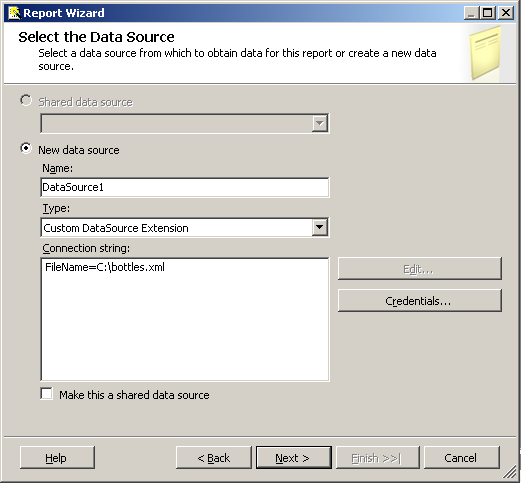
Enter a connection string, like the following: "FileName=C:\bottles.xml", you'll find this file at the top in the download section. Click next, this will take you to the "Design a Query" screen. Enter the following query: "select * from company", as shown below:
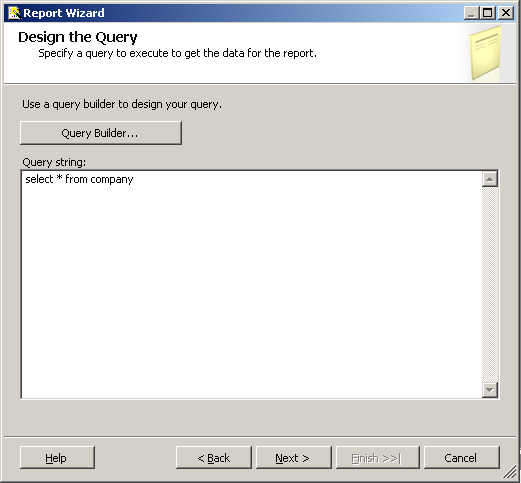
Click Next, and then continue until you have finished creating a report. You should now be able to run the report with the new Custom DataSource Extension that you can customise and shape to your own needs.
Now that you have it running and working, it is worth going over how to debug the Custom Data Extension. I was not intending to cover this in this article, and will reference you to Microsoft TechNet on Debugging Data Processing Extension Code, as this should provide you with sufficient information on how to setup debugging.
First release.
This article, along with any associated source code and files, is licensed under The Code Project Open License (CPOL)