Fastest way to Screen Cast

If you need to screen cast then check out Screen Toaster, it’s fast easy to use


  • Register & use it anywhere, anytime
  • No download. Compatible with Windows, Mac OS X, Linux.
  • Capture videos of onscreen action in one click
  • Record screencasts, tutorials, demos, training, lectures and more.
  • Share and stream videos online in Flash
  • Embed them on blogs and webpages or send them by email.


Scripting SQL Objects with SQL 2008

If you need to script out the objects within a database, from generating tables through to extracting out the data so you can use it in another database or schema then you are going to need to script the SQL.

MS SQL Server 2008 has new Generate Scripts option which enables you to script data in SQL Server database tables. you can script data from sql tables into a script file, to the clipboard or script data on a new sql query window. Script data can be used to export and/or import table data from one database to another database.

The Script Data option creates INSERT statements foreach row in the table using the column data that the related table record has. Later than the scripted table data can be used by executing the generated t-sql scripts, to create a copy of the original table on an other server or an other database with identical data or identical rows on the destination database or table, what’s more you can script the the database to go to a SQL 2000 database from a SQL 2008, how cool is that?

SQL Server generate script with data is a powerful SQL Server tool in order to create sql script to move data from one database to another database.

I want to demonstrate with a sample how a sql developer can use the Generate Scripts task in order to script table data of a SQL Server 2008 database table.

Open the Generate Scripts SubMenu Item from Task Menu

First of all, open the Microsoft SQL Server Management Studio which is installed from the Client Tools of a MS SQL Server 2008 installation package.

Connect to a MS SQL Server database instance using the Server Explorer or using the Connect screen.

Then open the Object Explorer window and expand the Databases node.

Here I connected to the local SQL Server instance and clicked over the Databases node and a list of existing sql server databases are visible in the object explorer window now. Later, I clicked the sql database MyWorks which owns the tables that I want to script data, rows/records of the database.

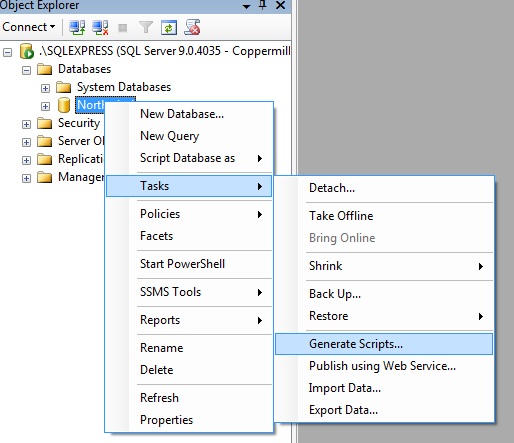
Continue by right clicking on the database name and open the context menu, chooes Tasks menu and open submenu. Select Generate Script submenu item from the displated list.

Generate SQL Server Script Wizards

When you select the Generate Scripts sub menu item the Generate SQL Server Scripts Wizard starts. SQL administrators and sql programmers can use the Script Wizard to generate t-sql scripts as a t-sql scripter to create scripts for any object (tables, views, schemas, etc). You can work in detail on the Script Wizard and find useful hint that you can benefit in your sql developments.

Watch the following screen cast to see it in action.


xVal 1.0 released

An important tool when using MVC xVal version 1.0 is released, xVal is a validation helper for ASP.NET MVC that lets you use your own choice of server-side validation framework (e.g., Microsoft’s DataAnnotations attributes, or Castle Validator, or NHibernate Validaion) and dynamically generates client-side validation code from your rules.

xVal 1.0

ModelState is not Valid

When you are using MVC you will come across using the ModelState, and the most common use is ModelState.IsValid, if you’ve not used this before then check out Validating Model Data in an MVC Application or xVal – a validation framework for ASP.NET MVC, what I did come across is an exception beyound the normal checks, that a table was missing from the database.  Although the error was recorded in the ModelState, it did not raise any exception and hence the exception handling did not capture the message.  To record the Exception you’ll need to go over the collection and this code allows you to do this:


foreach (var value in ModelState.Values)

{

     foreach (var error in value.Errors )

     {

        throw new Exception (error.ErrorMessage, error.Exception);

     }

}


Windows 7 – things you don’t know

I’ve been playing with Windows 7 for a little while now and I am impressed it lokks like Microsoft have got it right.  I’m a power user and if it works for me I can say it is going to work for Mr Average Joe.  I’d thought I draw up a number of special features that I have found in my travels around Windows 7.


Problem Steps Recorder

You can use Problem Steps Recorder to automatically capture the steps you take on a computer, including a text description of where you clicked and a picture of the screen during each click (called a screen shot). Once you capture these steps, you can save them to a file that can be used by a support professional or someone else helping you with a computer problem.

To start type PSR in the Start menu search box

More details from Tech Republic

Problem Steps Recorder with Jeremy Chapman


ISO Burner

You now have the ability directly from within Windows 7 to burn ISO images directly to CD or DVD, if you’d like to know how to do it check out Burn ISO Images Natively in Windows 7 Burn ISO Images Natively in Windows 7

Switch to a projector

Windows 7 now provides a standard way to switch your display from one monitor to another, or a projector – just press Win+P or run DisplaySwitch.exe and choose your preferred display. 

Calibrating your screen

I’ve done this before using Windows Media Centre, nand now you can calibrate your screen by running Display Colour Calibration Wizard, Click Start, type DCCW and press Enter to give it a try.


Richt-Click

If you’ve not already tried this Right-Click has come it to it’s own with so many features available, and making it so much faster to perform your day to day actions


Custom power switch

By default, Windows 7 displays a plain text ‘Shut down’ button on the Start menu, but it only takes a moment to change this action to something else. If you reboot your PC a few times every day then that might make more sense as a default action: right-click the Start orb, select Properties and set the ‘Power boot action’ to ‘Restart’ to make it happen.


Give the menu bar a shake

If you shake the menu bar all the other windows minimize, how cool is that?

If you have multiple windows open on your desktop and things are getting too cluttered, it used to be a time-consuming process to close them all down. In Windows 7 you can use the Aero Shake feature to minimise everything in seconds, using a cool mouse gesture. Grab the title bar of the window you wish to keep open and give it a shake, and rejoice in a clear desktop area.


Use Sticky Notes

The Sticky Notes app is both simpler and more useful in Windows 7. Launch StikyNot.exe and you can type notes at the keyboard; right-click a note to change its colour; click the + sign on the note title bar to add another note; and click a note and press Alt + 4 to close the note windows.


RSS-powered Windows 7 desktop slideshowsRSS-powered Windows 7 desktop slideshows

Now have the power to change your desktop via RSS feeds, click here to see how to do it


Keyboard shortcuts

Windows 7 supports several useful new keyboard shortcuts.

Alt+P

Display/ hide the Explorer preview pane

Windows Logo+G

Display gadgets in front of other windows

Windows Logo++ (plus key)

Zoom in, where appropriate

Windows Logo+- (minus key)

Zoom out, where appropriate

Windows Logo+Up 

Maximise the current window

Windows Logo+Down

Minimise the current window

Windows Logo+Left

Snap to the left hand side of the screen

Windows Logo+Right

Snap to the right hand side of the screen

Windows Logo+Home

Minimise/ restore everything except the current window


Multi-threaded Robocopies

An excellent command-line robocopy tool with new switches introduced with Windows 7. Check out, /MT, can improve speed by carrying out multi-threaded copies with the number of threads you specify. Enter robocopy /? at a command line for the full details.

Inline Editing

I needed a simple way of editing the text on the screen, without the need to open up or view a second screen, so I had a look around for some jQuery, and came across this very good jQuery plugin from Mika Tuupola, jEditable

For a live demo of jEditable click here

I am just so impressed with what you can do with jQuery, it’s making JavaScript work the way it should have done all those years ago.

10 cool things you can do with a USB flash drive

Came across this nice article on different uses for your USB flash drive

Transporting your data is probably the most common use for a USB flash drive. But there’s a world of other things you can do with these handy pocket-size drives. Here are 10 ways you can use that USB flash drive to do more than just move data

1: Run portable applications

In addition to storing your data, you can run portable applications from a USB flash drive. For example, OpenOffice, which is a complete office suite that includes a word processor, spreadsheet, presentation tool, drawing package, and database, is available as a portable application. Mozilla Firefox and Thunderbird are also available as portable applications. When you combine the office suite with the ability to surf the Web and check email, you’ll be able to take your most vital computing applications with you wherever you go — right in your pocket.

If that’s not enough, you can choose other applications to install on your USB flash drive from PortableApps.com (Figure A). You can even install an entire prepackaged suite of applications that includes such things as an audio player, games, an antivirus utility, and a handy menu system.

Figure A
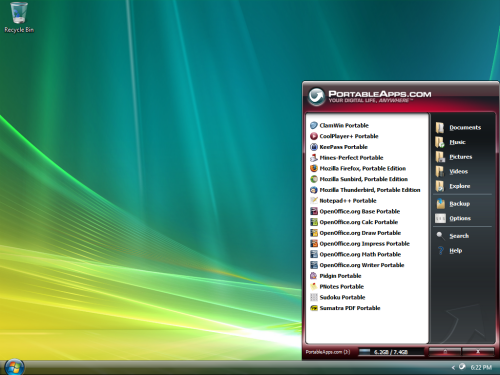
The PortableApps.com suite comes with a menu system to allow you to easily access your portable applications.

2: Boot an operating system

If you want to do more than just run your own applications, you might want to consider booting an entire operating system from your USB flash drive. You can boot either Windows or Linux from a USB flash drive; however, the process is not an exact science and you may be in for a technical adventure.

Fortunately, there are some guides you can follow. To learn how to boot Windows XP from a USB flash drive, see the article Creating a bootable USB flash drive for Windows XP. To learn how to boot a version of Linux from a USB flash drive, see the articlePuppy Linux teaches an old dog new tricks.

3: Connect to a wireless network

If you have a wireless network, you can use the Wireless Network Setup Wizard in Windows XP or the Windows Connect Now (WCN) feature built into Vista to save wireless network configuration information to a USB flash drive. You can then use your drive to quickly and easily connect another computer or a WCN-compatible device, such as a router or printer, to your wireless network. To learn more about using the Wireless Network Setup Wizard, see the Help And Support Center, which is accessible from Windows XP’s Start menu. To learn more about using the Windows Connect Now feature, see Windows Help And Support, which is accessible from Windows Vista’s Start menu.

4: Create a password reset disk

A password reset disk can really come in handy if you forget the password to your user account on a Windows system that is not a part of a domain. If you find yourself in that situation, you can use the password reset disk to reset your password and quickly get back into your user account. In Windows Vista, you can use USB flash drive rather than a floppy disk as a password reset disk (Figure B). For details on how to do so, see the article Create a Vista password reset disk using a USB flash drive.

Figure B
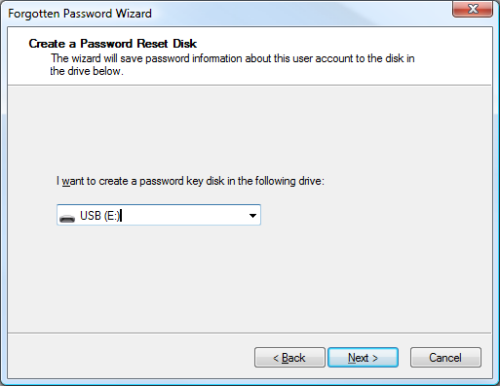
You can use your USB flash drive as a password reset disk.

5: Boost performance

If you’re running Windows Vista, you can use a USB flash drive to speed up your system with the ReadyBoost technology. ReadyBoost can use the storage space on a USB Flash drive as an additional memory cache to aid the memory cache on your hard disk. And because flash memory is more responsive than a hard disk, with its physical moving parts, the memory cache provided by ReadyBoost can significantly improve system responsiveness.

Using ReadyBoost is easy. You just insert your USB flash drive into your Vista system and follow the onscreen prompts to configure and use ReadyBoost. If you want more details, check out the article How SuperFetch and ReadyBoost work together.

6: Manage it

If all you really want to do with your USB flash drive is transport data, and you’re running Windows XP, you can do so more efficiently with the Microsoft USB Flash Drive Manager (Figure C). Once you have installed this manager, you can easily copy files to and from your drive, back up and restore the entire flash drive to and from your hard disk, change the drive label, and even create an autorun.inf file to launch Drive Manager automatically when you plug in the drive. To learn more about and download the USB Flash Drive Manager visit the Microsoft TechNet Magazine site.

Figure C
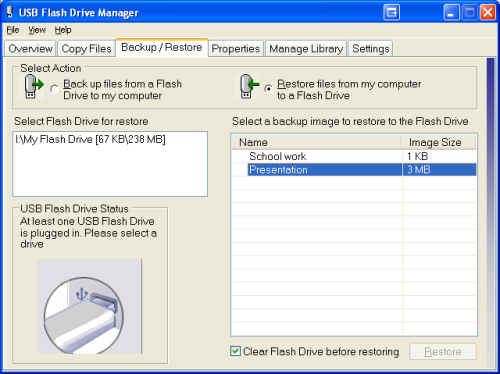
The Microsoft USB Flash Drive Manager provides you with a host of features, such as drive backup.

7: Use it as an MP3 player

Would you like to be listening to music when you’re using a computer at the office, but you don’t have an MP3 player? If so, you can use a USB flash drive as an MP3 player along with Windows Media Player and a set of headphones. Just copy your MP3 files to your USB flash drive, plug it into your computer, and direct Windows Media Player to build a library of the songs on your drive. You can use all of Windows Media Player’s playback features, such as playlists and favorites, to easily customize your music listening experience. And best of all, you won’t have to worry about running low on battery power.

8: Password-protect it

If you use a USB flash drive to transport sensitive data that you would prefer to protect from prying eyes, should you lose the drive, Rohos Mini Drive (Figure D) can safeguard that data. This security tool allows you to create a secret partition on the drive and then password-protect/encrypt that partition, thus protecting any documents you copy to that partition via the utility’s file manager. You can download (and read a review of) Rohos Mini Drive at Download.com.

Figure D
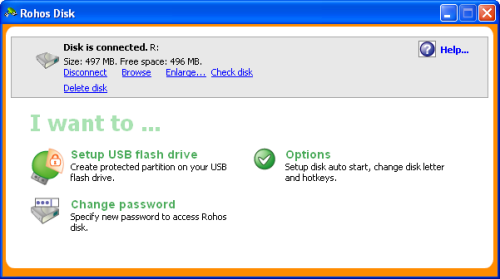
Using Rohos Mini Drive, you can secure sensitive files on your USB flash drive.

9: Run a Web site from it

If you are a Web developer, you may be interested to know that with Server2Go, you can easily run a Web server that supports Apache, PHP, MySQL, and Perl right from a USB flash drive. You can use Server2Go right out of the box without any installation. It runs on all versions of Windows, supports most common browsers, and is completely free. To a developer, the benefits of having a portable Web server on a USB drive are numerous. For example, imagine being able to carry a live Web site demo into a sales pitch meeting. For more information about this package, visit the Server2Go site.

10: Lock your PC

Have you ever seen a movie in which a person in some secret government installation simply inserts and removes a card to log in and log out of a PC? If you thought that idea was cool, you’ll definitely want to investigate Predator (Figure E). Once installed and configured, this little freeware utility will allow you to turn a USB flash drive into a key you can use to lock and unlock your computer.

Figure E
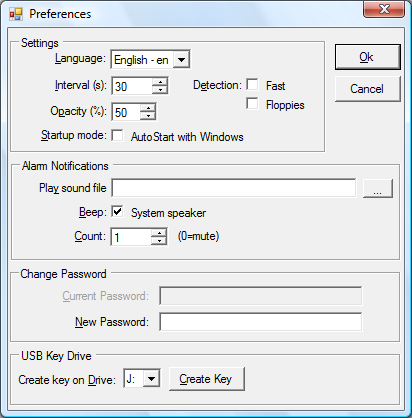
With Predator, you can use a USB flash drive as a key to lock and unlock your computer.

While the USB flash drive is connected to your computer, everything works as it normally would. Once you remove the USB flash drive, your computer is locked down — the keyboard and mouse are disabled and the screen darkens. To unlock your computer, you just plug in the USB flash drive and the computer will be unlocked and you can begin using it. To learn more about Predator, and/or to download it, visit the developer’s Web site.

TechRepublic – 5th August 2009
this and that